
Mastering Weather Radar Maps on Your iPhone: A Comprehensive Guide
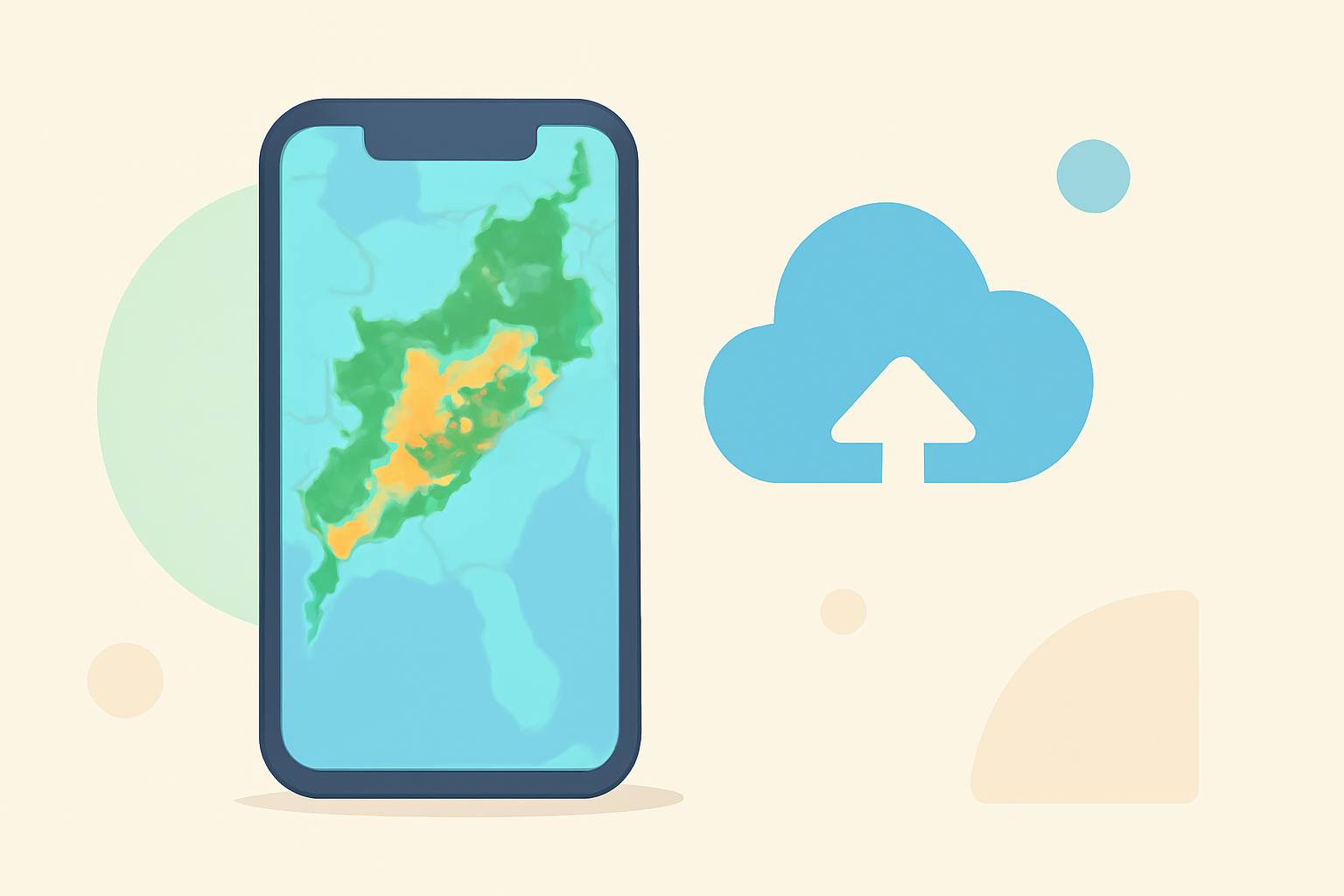
Staying informed about weather conditions is crucial for daily planning and safety. With the advancements in smartphone technology, accessing detailed weather radar maps on your iPhone has become more convenient than ever. This guide will walk you through the process of setting up and utilizing weather radar maps on your iPhone, ensuring you have the tools to monitor weather patterns effectively.
1. How Can I Access Weather Radar Maps on My iPhone?
Apple's built-in Weather app offers a straightforward way to view weather maps on your iPhone. To access these maps:
- Open the Weather app on your iPhone.
- Select a location.
- Tap the "Show Map" button at the bottom of the screen.
- To switch between different weather maps, tap the "Overlay Menu" button in the upper right corner.
This feature allows you to view full-screen precipitation, temperature, air quality, and wind maps for your location or other areas. (support.apple.com)
2. Are There Third-Party Apps for Enhanced Weather Radar Features?
Yes, several third-party apps provide advanced weather radar features on your iPhone. These apps offer real-time animated weather radar images, detailed forecasts, and severe weather alerts. They often include interactive maps with layers for precipitation, temperature, wind speed, and more. Some apps also offer widgets for quick access to weather information.
3. How Do I Set Up and Use These Weather Radar Apps?
To set up and use a weather radar app on your iPhone:
- Download the app from the App Store.
- Open the app and grant necessary permissions, such as location access.
- Add your preferred locations to monitor weather conditions.
- Customize settings to receive notifications for severe weather alerts.
These apps typically offer user-friendly interfaces with interactive maps, allowing you to zoom in on specific areas and view detailed weather information.
4. Can I Share Weather Radar Information from My iPhone?
Yes, you can share weather radar information from your iPhone. For instance, the Weather Hi-Def Radar app allows you to share your current radar view by taking a screenshot and selecting the share option. (weathersphere.zendesk.com)
5. Are There Apple Watch Apps for Weather Radar?
Yes, some weather radar apps offer Apple Watch compatibility, allowing you to view weather information directly on your wrist. These apps provide features like weather radar layers, current conditions, and severe weather alerts. To add a weather widget to your Apple Watch, you can use the Watch app on your iPhone to customize your watch face. (weathersphere.zendesk.com)
6. How Accurate Are the Weather Radar Maps on My iPhone?
The accuracy of weather radar maps on your iPhone depends on the data sources used by the app. Many apps utilize data from reputable sources like the National Oceanic and Atmospheric Administration (NOAA) to provide accurate and up-to-date weather information. It's important to choose apps that source their data from reliable providers to ensure the information you receive is trustworthy.
7. How Do I Stay Updated with Severe Weather Alerts on My iPhone?
To stay updated with severe weather alerts on your iPhone:
- Enable location services for your weather app to receive alerts for your area.
- Customize notification settings within the app to receive alerts for specific weather conditions, such as thunderstorms or hurricanes.
- Regularly check the app for updates, especially during severe weather seasons.
By configuring these settings, you can receive timely notifications about severe weather events, helping you make informed decisions.
By following these steps, you can effectively set up and use weather radar maps on your iPhone, ensuring you stay informed about weather conditions and can plan accordingly.