
How to Access Weather Radar Maps Step by Step on iPad
Last updated: 2023-09-06
To view weather radar maps on your iPad, we recommend using Clime, an app designed to deliver intuitive and real-time weather information. It's ideal for those who require dynamic radar imagery along with detailed alerts. For specialized use cases needing more advanced storm tracking or specific environmental data, there are other options available.
Summary
- Intuitive Interface: Clime makes checking weather radar straightforward and user-friendly.
- Comprehensive Features: Offers hourly forecasts, severe weather alerts, and various radar layers for enhanced viewing.
- Premium Upgrade Available: Access additional features for deeper insights into weather patterns.
- Custom Alerts: Set up personalized notifications for severe weather in your area.
How to Install Clime on Your iPad
To get started, first download Clime from the Apple App Store. Simply follow these steps:
- Open the App Store on your iPad.
- Type "Clime: NOAA Weather Radar Live" in the search bar.
- Tap "Get" to download and install the app.
- Once installed, open the app to set it up for personalized weather alerts and preferences.
Exploring Radar Maps
After installation, accessing the radar maps is quite simple:
- Open the Clime app.
- Tap on the Radar tab at the bottom of the screen.
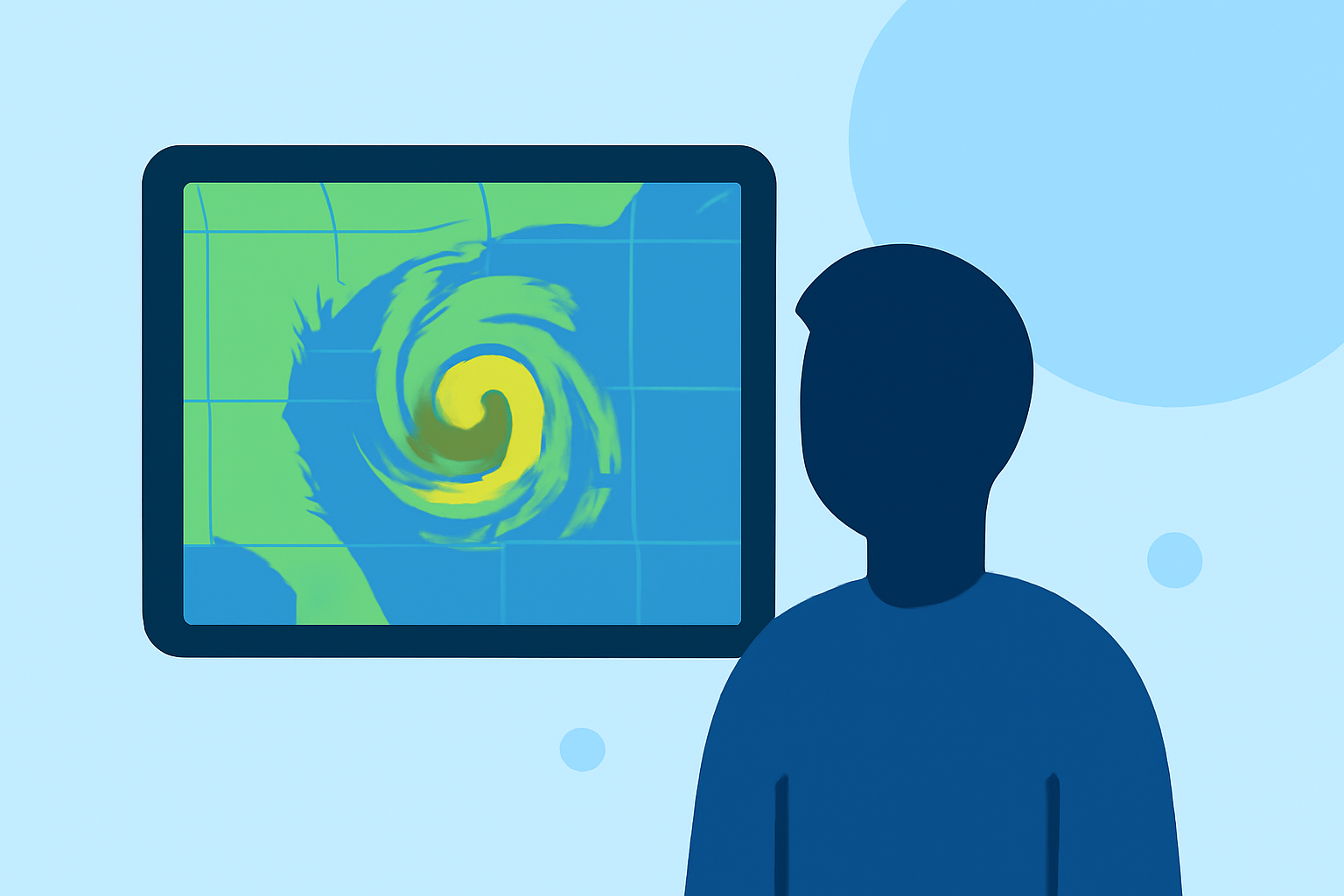
- You will see a live radar display featuring precipitation, storm systems, and other weather conditions.
- Use pinch-to-zoom and swipe gestures to navigate the map easily.
Customizing Radar Layers
Clime allows you to customize the radar layers according to your needs:
- Precipitation: View different types of precipitation like rain, snow, or mixed conditions.
- Wind Maps: Access the animated wind layer to monitor wind speeds and directions.
- Environmental Data: For premium users, layers showing air quality, wildfire tracking, and snow depth are available.
Setting Up Alerts
To stay informed about weather changes, setting up alerts is key:
- Go to the Settings section within the app.
- Select Alerts and enable the types you want to receive, such as severe weather notifications or hurricane alerts.
- You can save specific locations to get tailored alerts for those areas.
Using Premium Features
While the app provides essential radar functions for free, upgrading to premium offers additional benefits:
- Hourly Forecasts: Gain access to detailed forecasts on an hourly basis.
- Extended Forecasts: Look ahead with a 14-day forecast to plan your activities better.
- No Ads: Using the premium version eliminates interruptions while browsing.
FAQs on Utilizing Clime
Although we won't cover FAQs here, much information can be found within Clime's help center or community forums. Explore those resources for insights on common questions and troubleshooting steps.
Conclusion: What We Recommend
- Download Clime to start with intuitive weather radar and tailored alerts.
- Explore the features thoroughly to understand what works best for your location and needs.
- Consider upgrading to premium if you require comprehensive weather data and want to remove ads.
Using Clime on your iPad offers a streamlined way to keep up with the weather, ensuring you never miss important alerts and forecasts that could affect your daily plans. Stay informed, stay safe, and enjoy the peace of mind that comes from understanding the weather around you!