
Mastering Weather Widgets on Your Apple Watch: A Comprehensive Guide
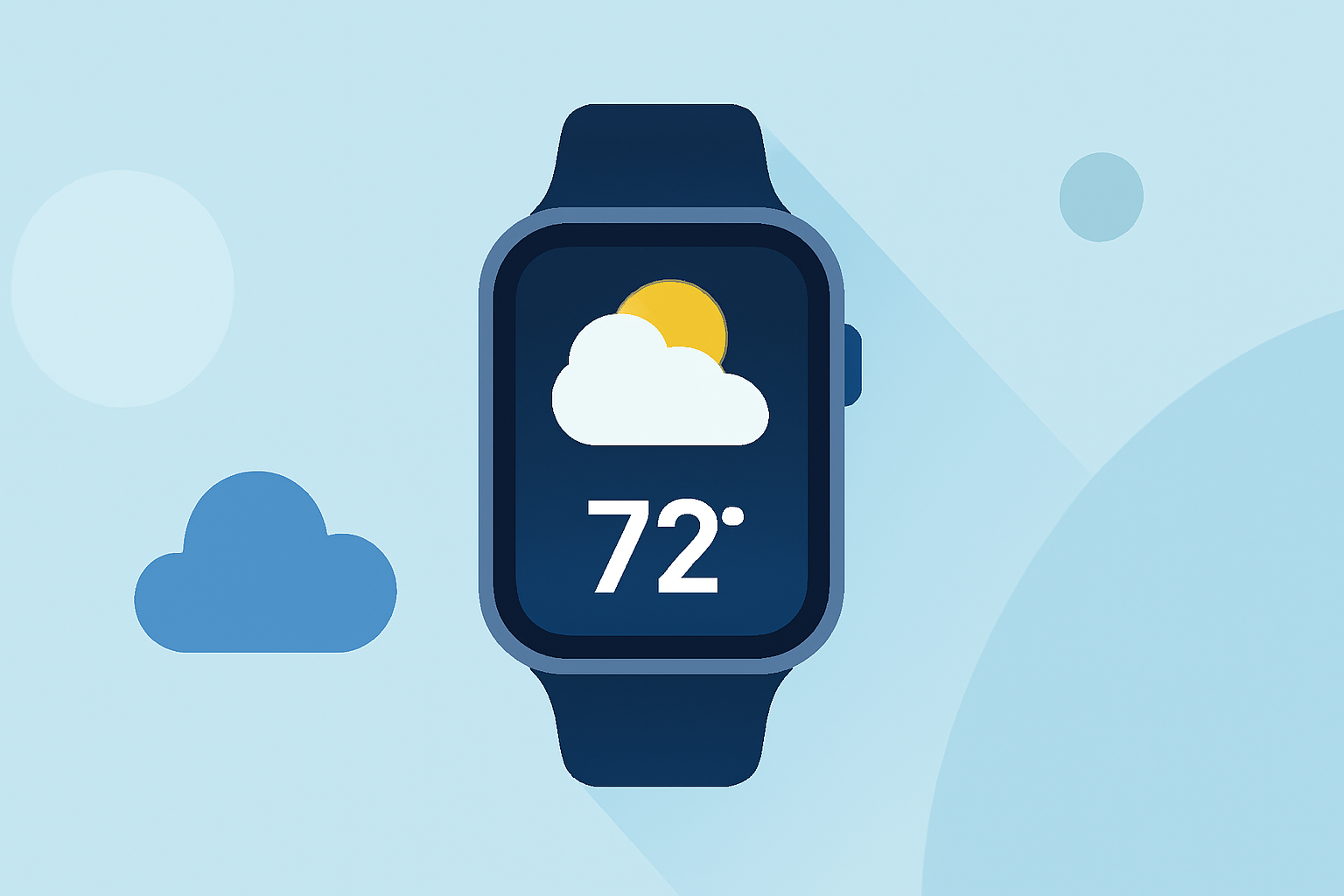
The Apple Watch's Smart Stack feature, introduced in watchOS 10, offers a dynamic and personalized way to access essential information, including weather updates, directly from your wrist. By understanding and customizing this feature, you can ensure timely and relevant weather information is always at your fingertips.
What Is the Smart Stack on Apple Watch?
The Smart Stack is a collection of widgets that intelligently display information based on factors like time of day, location, and activity. This feature allows you to access pertinent data without navigating through multiple apps, streamlining your Apple Watch experience. (support.apple.com)
How to Access the Smart Stack
To view the Smart Stack on your Apple Watch:
- Turn the Digital Crown: Rotate the Digital Crown upward from your watch face.
- Swipe Up: Alternatively, swipe up from the bottom of the screen.
This action reveals a stack of widgets, including the weather, which updates based on your current location and time of day. (support.apple.com)
Customizing the Weather Widget in the Smart Stack
Personalizing the weather widget ensures you receive the most relevant information:
- Open the Smart Stack: Access it using one of the methods above.
- Enter Edit Mode: Long-press any widget until the edit options appear.
- Add or Remove Widgets: Tap the '+' icon to add new widgets or the '-' icon to remove existing ones.
- Pin Widgets: To keep a widget at the top of the stack, tap the pin icon.
- Reorder Widgets: Touch and hold a widget, then drag it to your desired position.
By customizing the weather widget, you can ensure it displays the most pertinent information, such as current conditions, hourly forecasts, or severe weather alerts. (support.apple.com)
Utilizing Live Activities for Real-Time Weather Updates
The Smart Stack also supports Live Activities, providing real-time updates on various activities, including weather conditions. To view Live Activities:
- Open the Smart Stack: Access it as described earlier.
- Locate Live Activities: These appear at the top of the stack and update dynamically.
Live Activities offer timely information, such as sudden weather changes or severe weather warnings, keeping you informed throughout the day. (support.apple.com)
Tips for Effective Use of Weather Widgets
- Location Services: Ensure your Apple Watch has location services enabled to provide accurate weather updates based on your current location.
- Customize Widget Content: Tailor the weather widget to display the information most relevant to you, such as temperature, precipitation, or wind speed.
- Stay Updated: Regularly check and adjust your widget settings to align with your changing preferences and needs.
By effectively utilizing and customizing the weather widgets within the Smart Stack, you can enhance your Apple Watch experience, ensuring you receive timely and relevant weather information tailored to your daily activities.