
Mastering Weather Widgets and Smart Stacks on Your iPhone for Seamless Travel Planning
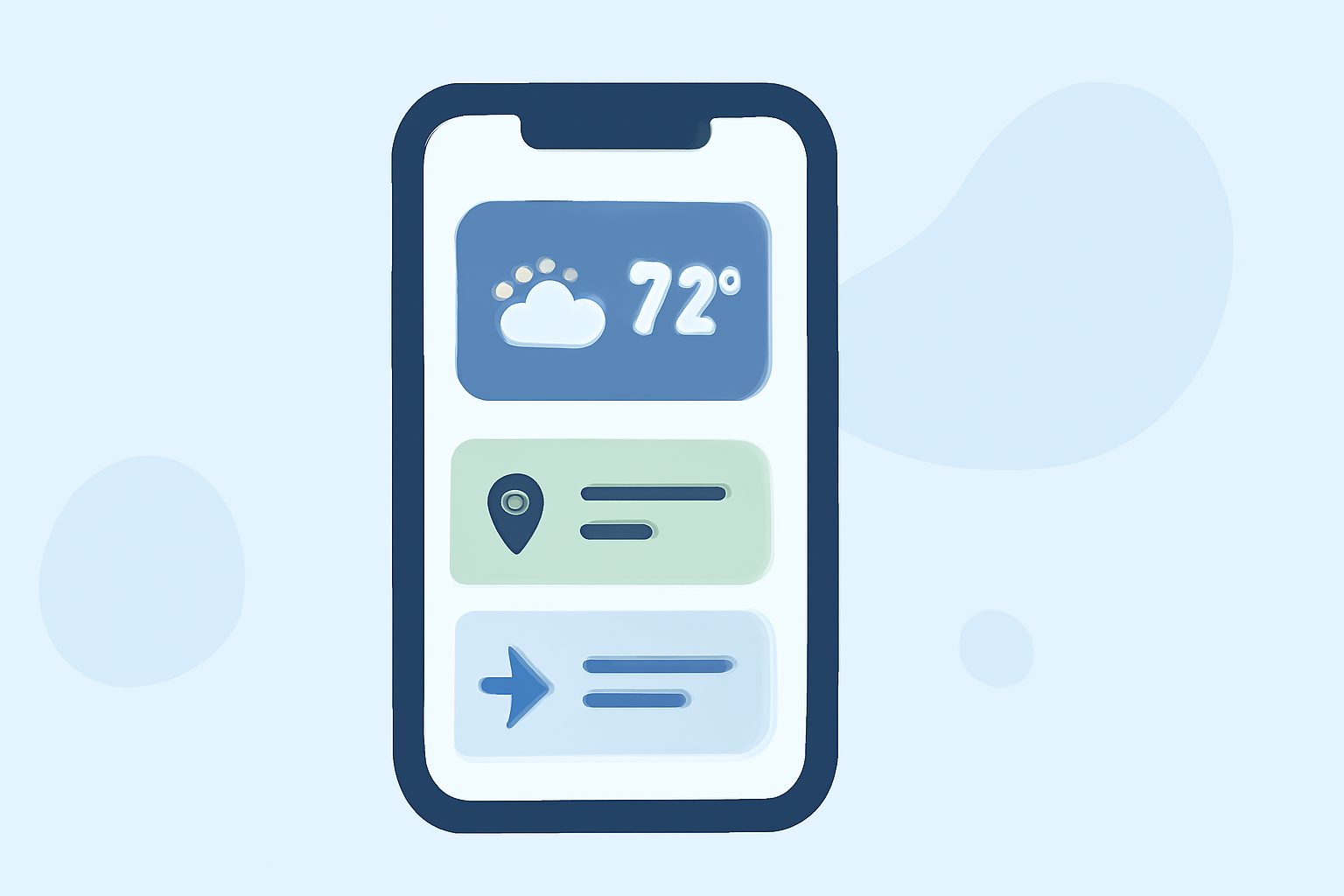
Traveling can be unpredictable, but with the right tools, you can stay prepared. Your iPhone offers features like weather widgets and Smart Stacks that provide timely information and streamline your travel experience.
What Are Weather Widgets and Smart Stacks?
Weather widgets display current conditions and forecasts directly on your Home Screen, allowing quick access without opening the app. Smart Stacks are collections of widgets that rotate automatically based on factors like time, location, and activity, ensuring you see the most relevant information when you need it.
How to Add Weather Widgets to Your Home Screen
-
Enter Edit Mode: Touch and hold an empty area on your Home Screen until the apps jiggle.
-
Access Widget Gallery: Tap the plus sign (+) in the top-left corner.
-
Select Weather Widget: Scroll down and choose the Weather widget.
-
Choose Widget Size: Swipe through the available sizes and select one that fits your preference.
-
Add Widget: Tap "Add Widget," then position it on your Home Screen.
-
Exit Edit Mode: Tap "Done" in the top-right corner.
For a visual guide, you can watch this tutorial:
How to Add the Weather Widget to iPhone Home Screen
How to Create and Use Smart Stacks
-
Enter Edit Mode: Touch and hold an empty area on your Home Screen until the apps jiggle.
-
Access Widget Gallery: Tap the plus sign (+) in the top-left corner.
-
Select Smart Stack: Scroll down and choose "Smart Stack."
-
Add Smart Stack: Tap "Add Widget," then position it on your Home Screen.
-
Customize Smart Stack: Touch and hold the Smart Stack, tap "Edit Stack," and reorder widgets or enable "Smart Rotate" to let iOS display relevant widgets based on your activity.
For more details, refer to Apple's official guide: (support.apple.com)
Optimizing Widgets for Travel
-
Multiple Locations: Add multiple Weather widgets for different destinations to stay informed about various locations.
-
Travel Itinerary: Use a Smart Stack to include widgets for your calendar, reminders, and weather, keeping all essential information accessible.
-
Time Zones: Customize widgets to display times in different time zones, helping you manage calls and meetings across regions.
Additional Tips
-
Interactive Widgets: Some widgets allow interaction; for instance, tapping the Weather widget can open the app for more detailed information.
-
Widget Suggestions: Enable "Widget Suggestions" in the Smart Stack settings to let iOS automatically add relevant widgets based on your usage patterns.
By effectively utilizing weather widgets and Smart Stacks, you can enhance your travel experience, ensuring you're always prepared and informed.