
Mastering Weather Widgets on Your Apple Watch Smart Stack
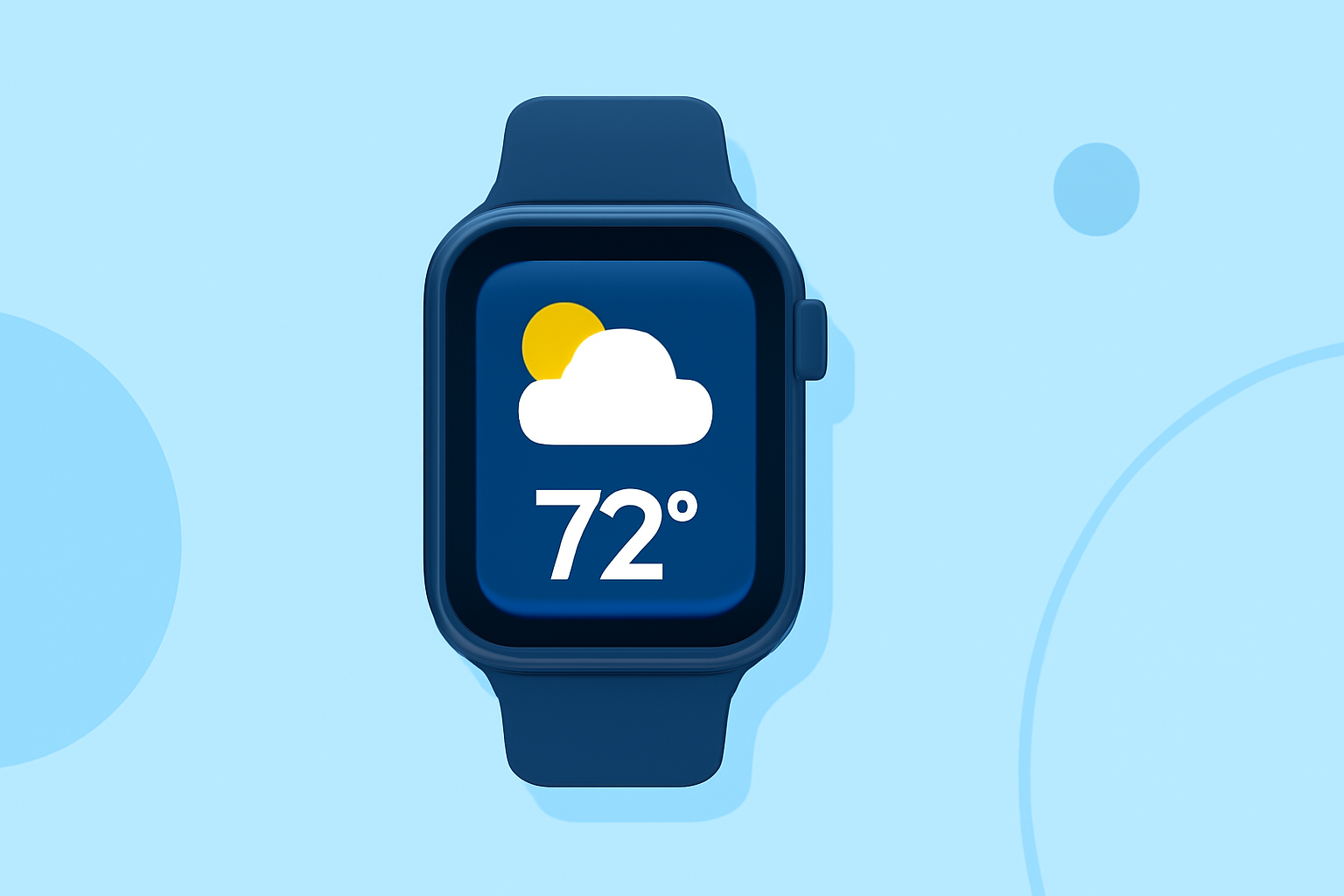
The Apple Watch's Smart Stack feature, introduced in watchOS 10, offers a dynamic way to access timely information through widgets that adapt to your context, such as time of day and location. (support.apple.com) Integrating a weather widget into your Smart Stack ensures that you have immediate access to current conditions and forecasts, enhancing your daily planning.
What Is the Smart Stack?
The Smart Stack is a collection of widgets that appear beneath the clock on your Apple Watch face. These widgets display real-time information from various apps, including weather updates, without the need to open individual applications. The stack intelligently suggests relevant information based on factors like time of day and your location. (support.apple.com)
How to Access the Smart Stack
To view the Smart Stack:
- From your watch face, turn the Digital Crown upward.
- Alternatively, swipe up from the bottom of the screen.
- On supported models, you can also perform a double-tap gesture. (support.apple.com)
Adding the Weather Widget to Your Smart Stack
To include the weather widget in your Smart Stack:
- Open the Smart Stack by following the steps above.
- Scroll to the bottom and tap "Edit."
- Tap the "+" button at the top to add a new widget.
- Browse through the list of available widgets and select the weather widget.
- Tap "Done" to confirm your selection. (support.apple.com)
Customizing the Weather Widget
After adding the weather widget, you can customize it to display the most relevant information:
- Open the Smart Stack and scroll to the weather widget.
- Long-press the widget to enter edit mode.
- Tap the "Expand" button (if available) to access customization options.
- Choose your preferred location, units (Celsius or Fahrenheit), and other settings.
- Tap "Done" to save your preferences. (support.apple.com)
Reordering and Pinning Widgets
To prioritize the weather widget within your Smart Stack:
- Open the Smart Stack and scroll to the weather widget.
- Long-press the widget to enter edit mode.
- Tap the "Pin" icon to keep the weather widget at the top of the stack.
- To reorder other widgets, touch and hold a widget, then drag it to your desired position. (support.apple.com)
Removing the Weather Widget
If you wish to remove the weather widget:
- Open the Smart Stack and scroll to the weather widget.
- Long-press the widget to enter edit mode.
- Tap the "Delete" button to remove it from the stack. (support.apple.com)
Additional Tips
- Live Activities: The Smart Stack can display Live Activities, such as ongoing workouts or timers, at the top of the stack for real-time updates. (support.apple.com)
- Contextual Suggestions: Based on your routine and location, the Smart Stack may suggest relevant widgets, like the weather forecast in the morning or traffic updates during your commute. (support.apple.com)
By customizing your Smart Stack with the weather widget, you can ensure that essential weather information is always readily accessible, helping you make informed decisions throughout your day.
Highlights:
- How to Use the Smart Stack and Widgets on Your Apple Watch, Published on Monday, August 07
- How to Use Smart Stack Widgets on the Apple Watch - The Mac Security Blog, Published on Tuesday, December 31
- How to make Apple Smart Stack smarter: Edit, pin and delete widgets - Wareable, Published on Monday, October 13