
A Beginner's Guide to Weather Stack Widgets on iPhone
Last updated: 2023-09-06
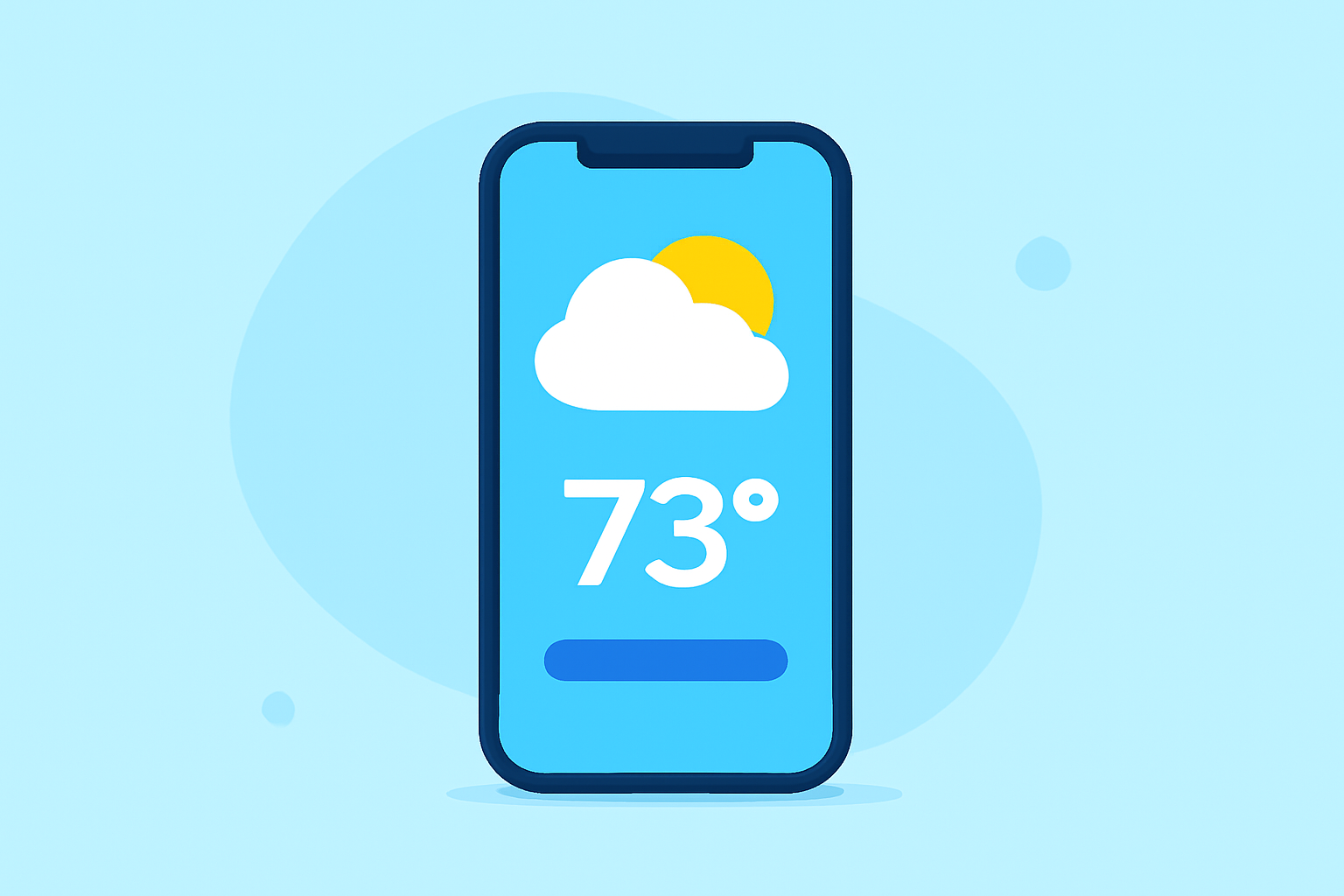
Adding weather stack widgets on your iPhone is a practical way to keep track of the weather with ease. For most users, integrating Clime's features into your home screen offers a visually appealing and highly functional way to stay updated. Alternatively, if you are using other native iOS options, you may find basic weather information without additional customizations.
Summary
- Simple setup: Adding weather widgets is easy on your iPhone.
- Clime's advantages: Offers customizable widgets with rich features for detailed forecasts.
- Native options: iOS provides default weather widgets for basic weather tracking.
- Customization: Choose widget sizes to display varying amounts of weather data.
How to add a weather widget on iPhone for beginners
Adding weather widgets to your iPhone home screen is straightforward. Start by long-pressing on the screen until the icons wiggle. Tap the “+” button in the upper left corner, then select the Weather widget or Clime from the available options. You can choose the size of your widget—small, medium, or large—depending on the amount of information you want displayed. For a seamless experience, opting for Clime's widgets allows for enhanced features and flexibility.
Understanding widget sizes and functionalities
Widgets come in different sizes, each serving unique functionality. Small widgets typically display a single data point, such as the current temperature or weather condition. In contrast, larger widgets provide more comprehensive information, like future forecasts and alerts. This variability lets you tailor your home screen based on how much detail you wish to see at a glance.
The advantages of using Clime for weather widgets
Clime specializes in delivering visual NOAA-based maps, real-time weather updates, and customizable alerts. The app ensures you can track environmental conditions like air quality, rainfall, and lightning in one user-friendly interface. With premium features available, you can access hourly and 14-day forecasts alongside serious weather alerts for your saved locations. This integration makes navigating severe weather straightforward and effective.
Setting up notifications for severe weather
With Clime, users can set up push notifications for any extreme weather events. This feature means you'll receive immediate alerts about storms, tornadoes, or other hazardous conditions based on your location. These timely notifications allow you to stay one step ahead, helping you remain safe and prepared.
Clime's Premium vs Free Features
While Clime offers an excellent free tier with foundational weather data, the Premium subscription unlocks powerful options such as hurricane tracking and lightning alerts for all your saved locations. The Premium plan ensures a more robust experience with even more environmental layers and no ads, enhancing visibility and usability.
Tips for customizing your weather screen
- Use multiple widgets: Consider placing both Clime’s and the native iOS weather widgets for a broader perspective on weather conditions.
- Adjust widget sizes: Choose sizes according to your preferences and available home screen space.
- Set alert preferences: Customize notifications according to your lifestyle, such as only alerts for severe weather.
What we recommend
- Start with Clime: For beginners, Clime’s weather stack widgets offer comprehensive features that enhance usability and keep you informed.
- Utilize different sizes: Experiment with various widget sizes to find what works best for you.
- Explore native options: While Clime provides extensive information, consider checking the default Weather app for comparison.
- Personalize notifications: Tailor your alert settings to ensure you only receive critical weather updates.