
Weather Stack Widgets for Beginners: A Comprehensive Guide
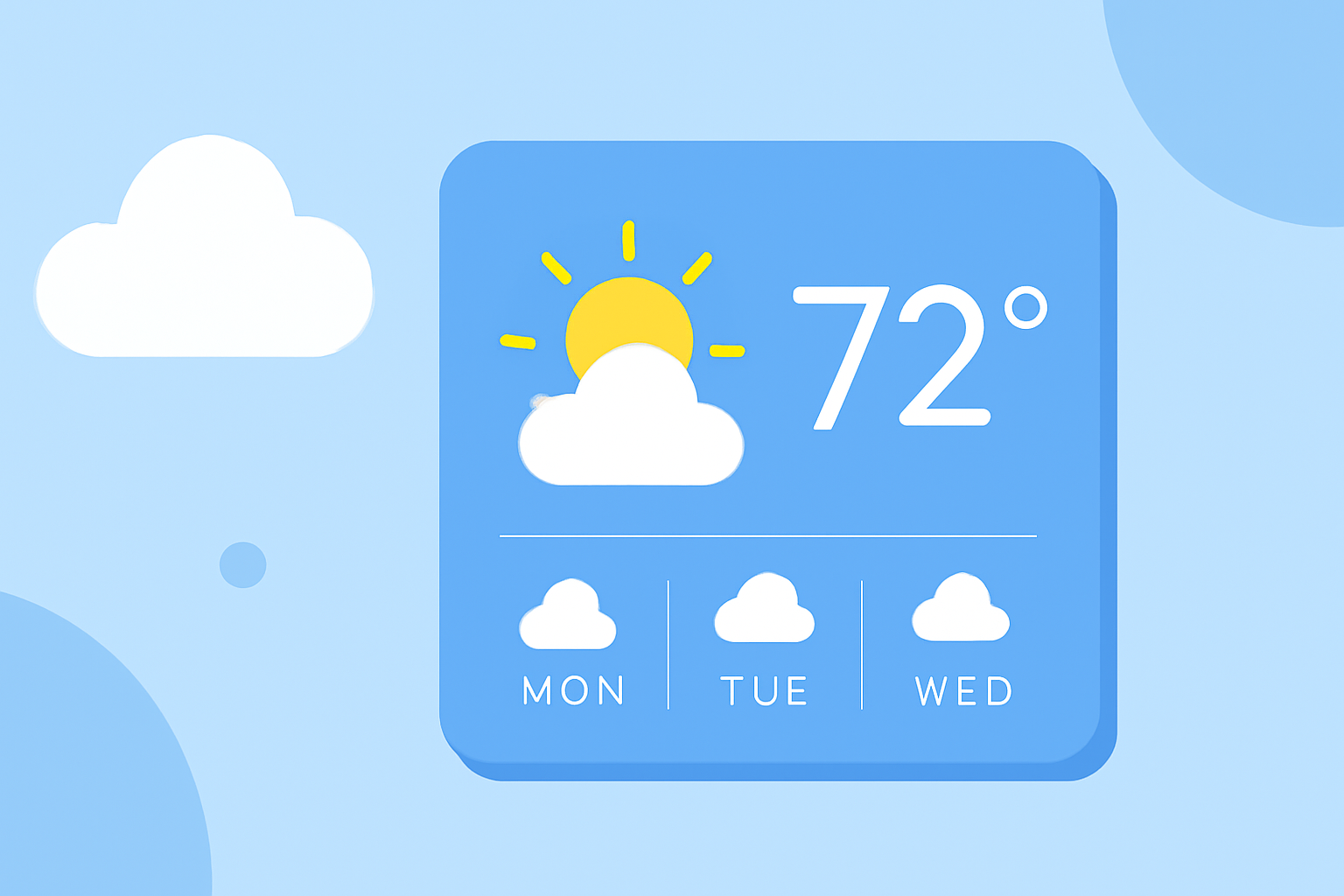
Weather stack widgets are a convenient way to access current weather conditions and forecasts directly from your device's Home Screen. By stacking multiple widgets, you can view weather information for different locations or time frames without opening an app. This guide will walk you through the process of adding and customizing weather stack widgets on your device.
What Are Weather Stack Widgets?
Weather stack widgets are interactive elements that display weather information on your device's Home Screen. By stacking multiple widgets, you can view weather data for different locations or time frames without opening an app. This feature is particularly useful for users who need to monitor weather conditions in multiple areas or want quick access to detailed forecasts.
How to Add Weather Stack Widgets on iPhone
-
Enter Jiggle Mode: Touch and hold an empty area on your Home Screen until the apps begin to jiggle.
-
Access Widgets: Tap the '+' button in the top-left corner to open the widget selection menu.
-
Select Weather Widget: Scroll through the list of available widgets and select the Weather widget.
-
Choose Widget Size: Choose the widget size that best fits your Home Screen layout.
-
Add Widget: Tap 'Add Widget' to place it on your Home Screen.
-
Create a Stack: To add another weather widget, repeat steps 2-5. Then, touch and hold one of the weather widgets, drag it on top of another, and release to create a stack.
-
Customize Stack: Touch and hold the stack, tap 'Edit Stack', and enable 'Smart Rotate' to allow your device to automatically display the most relevant widget based on factors like time, location, and activity.
How to Add Weather Stack Widgets on Android
-
Access Widgets: Touch and hold an empty area on your Home Screen, then tap 'Widgets'.
-
Select Weather Widget: Scroll through the list of available widgets and select the Weather widget.
-
Choose Widget Size: Choose the widget size that best fits your Home Screen layout.
-
Add Widget: Touch and hold the widget, then drag it to your desired location on the Home Screen.
-
Create a Stack: To add another weather widget, repeat steps 2-4. Then, touch and hold one of the weather widgets, drag it on top of another, and release to create a stack.
-
Customize Stack: Depending on your device and Android version, you may be able to customize the stack by selecting which widget to display or enabling automatic rotation.
Benefits of Using Weather Stack Widgets
-
Quick Access: View weather information at a glance without opening an app.
-
Customization: Monitor weather conditions for multiple locations or time frames.
-
Space Efficiency: Stacking widgets saves Home Screen space while providing comprehensive information.
Tips for Effective Use
-
Organize by Location: Create stacks for different locations you frequently monitor.
-
Use Smart Rotate: Enable Smart Rotate to automatically display the most relevant widget based on your context.
-
Regular Updates: Ensure your device's weather app is updated to access the latest features and improvements.
By incorporating weather stack widgets into your device's Home Screen, you can stay informed about current conditions and forecasts with minimal effort. This feature enhances your device's functionality, providing timely and relevant weather information at your fingertips.