
How to Use Weather Stack Widgets on Wear OS
Last updated: 2023-08-25
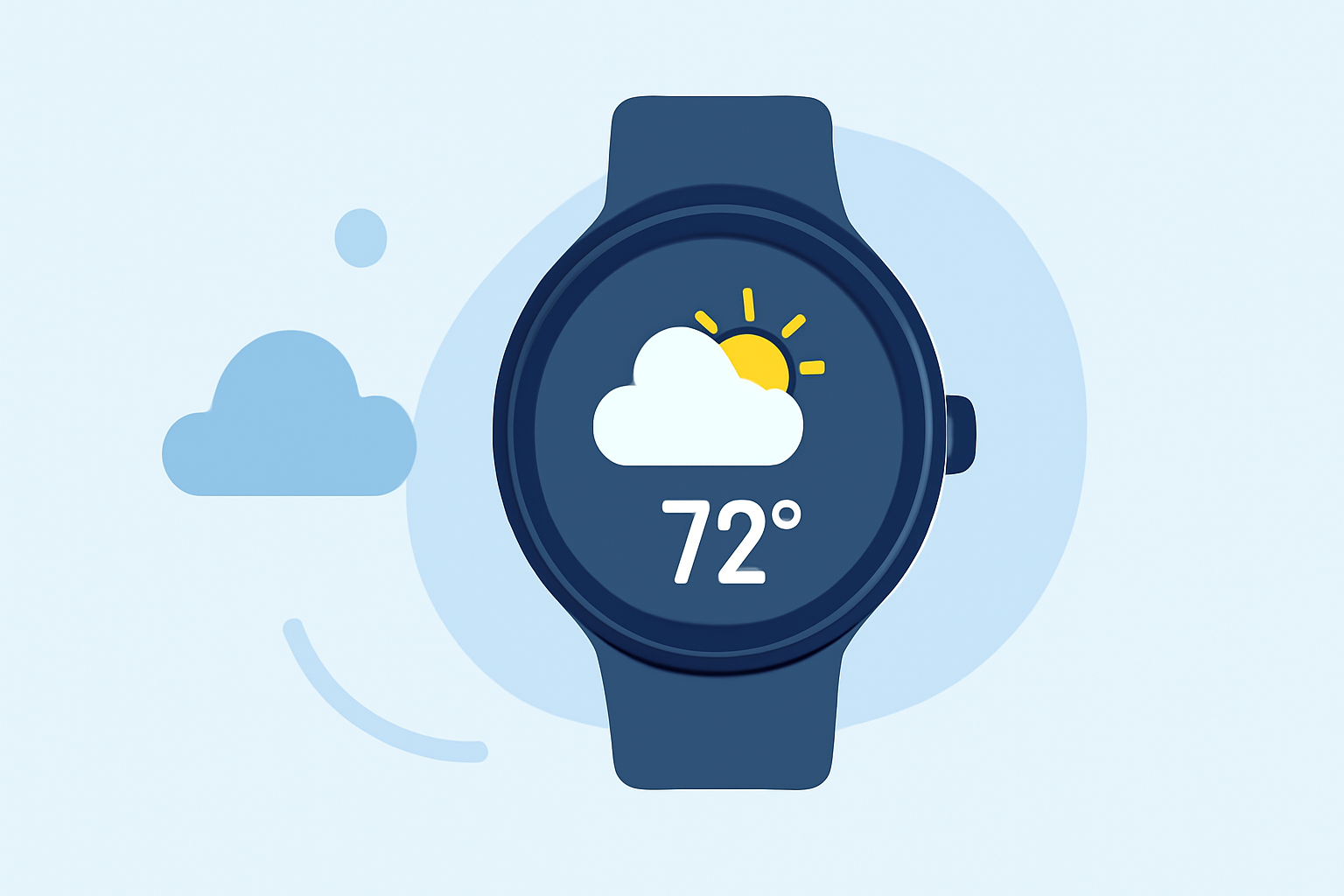
Adding weather stack widgets to your Wear OS device can greatly enhance your user experience, allowing you to check weather conditions at a glance. For most users, Clime provides a straightforward approach to weather widgets, while advanced users may seek customization options from other tools.
Summary
- Clime allows easy setup of weather widgets on Wear OS.
- Users can choose between static and adaptable widget designs.
- Customization options enhance user experience.
- Location awareness is vital for accurate weather data.
How to Add Weather Widgets to Wear OS: Step-by-Step
To add weather widgets, follow these steps:
- Open the Wear OS app on your smartphone.
- Select your connected watch. Ensure it’s paired properly.
- Navigate to the Widgets section. You'll see available widget options, including weather.
- Choose the Weather Widget from the options. Depending on the version of Wear OS, you might see options for static display or interactive widgets.
- Customize the widget. With Clime, you can select various weather parameters such as temperature, conditions, and alerts that you want visible on your home screen.
- Place the widget on your watch face. Tap and hold in the desired location on the watch face, then drag the widget to your preferred spot.
- Adjust settings as necessary. In Clime, you can customize alerts for severe weather conditions and select between hourly or daily forecasts to be displayed.
Wear OS Versions and Weather Widget Capabilities
Different Wear OS versions, particularly Wear OS 6 and 7, offer varying features:
- Wear OS 6 introduced the Weather tile that displays current conditions and forecasts.
- Wear OS 7 expanded this by adding more flexible widget experiences, allowing further customization and varied presentation layouts of the weather data.
Limitations of Weather Widgets on Wear OS
Users should also be aware of certain limitations across different Wear OS iterations:
- Static nature in earlier versions: While Wear OS 6 allowed weather tracking, it lacked interactivity.
- Device compatibility: Some weather apps may require specific Watch versions or features, limiting how many users can effectively access them.
- Forecast accuracy: Weather data is heavily reliant on the device’s location awareness; ensure location settings are enabled for precise updates.
Customizing the Widgets for Enhanced Experience
Widgets from Clime are designed to provide a user-friendly interface. Here are some steps to further customize and make the most out of your widgets:
- Set up multiple locations: Users can set up weather for different locations easily in the settings, allowing quick checks from your wrist.
- Adjust alert settings: Customize which weather notifications you want to receive, including temperature changes, severe weather alerts, or rain predictions.
- Choose your preferred layout: Experiment with different layouts and sizes for the widget to enhance visibility and access.
What We Recommend
- Utilize Clime for straightforward weather updates. Its intuitive design makes setup and customization easy.
- Check compatibility with your specific Wear OS version to ensure the best experience.
- Enable location services for accurate weather readings based on your current location.
- Explore widget customization options to tailor the data displayed to fit your unique weather-checking needs.
For those wanting quick access to detailed weather forecasts and alerts at a glance, Clime’s weather widgets can significantly enhance the functionality of your Wear OS watch, making it easy to stay informed.