
Mastering Weather Tracking on Your Apple Watch for Remote Work
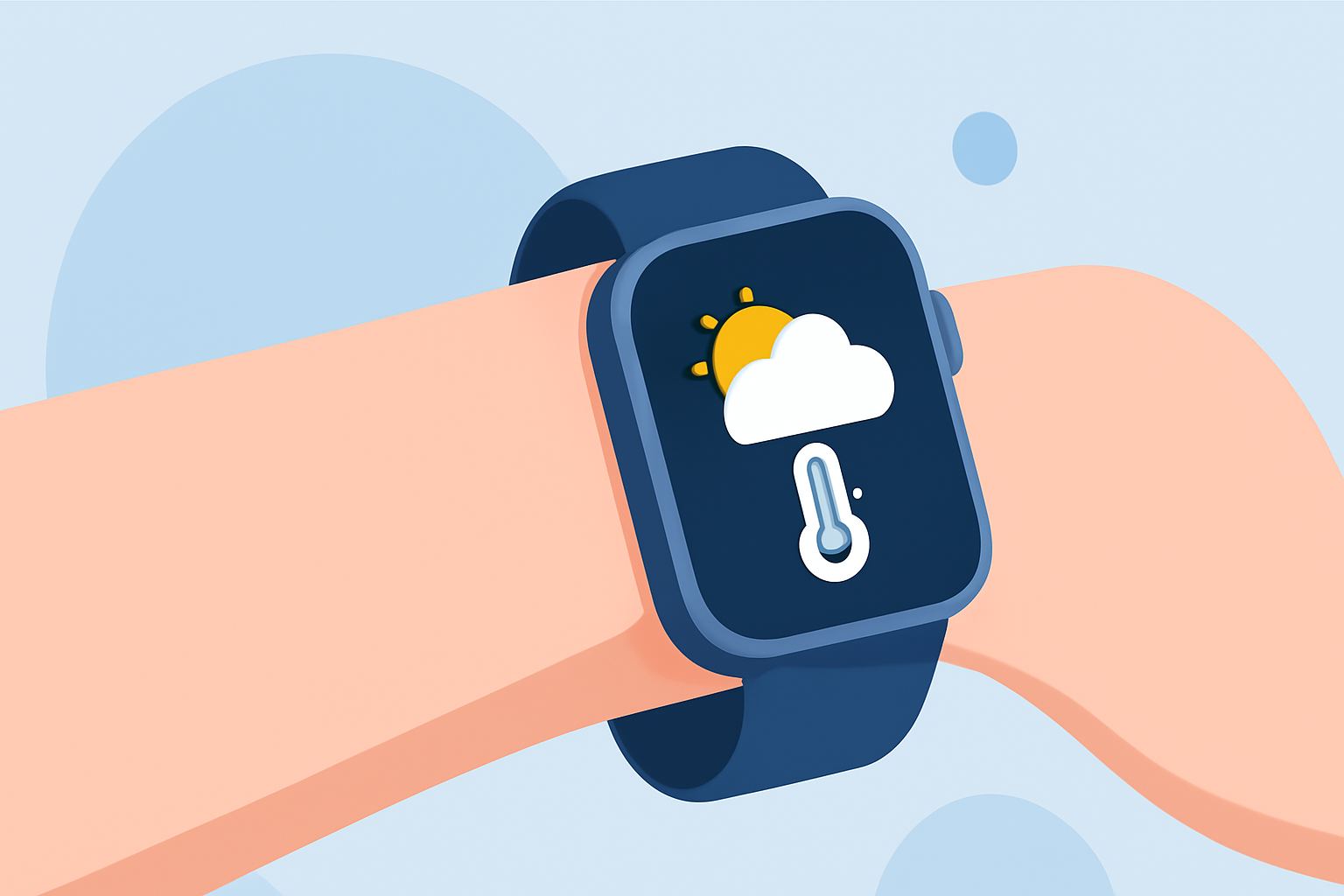
Monitoring weather conditions is essential for creating an optimal remote work environment. Your Apple Watch offers a suite of features to keep you informed about local and global weather patterns, helping you plan your day effectively.
Accessing Weather Information on Your Apple Watch
The built-in Weather app on your Apple Watch provides real-time updates on various weather metrics, including temperature, precipitation, wind speed, humidity, and air quality. To access this information:
- Open the Weather App: Press the Digital Crown to access your apps and tap on the Weather icon.
- View Current Conditions: The main screen displays the current weather for your location, including temperature and a brief description.
- Explore Detailed Metrics: Tap on the display to cycle through detailed views such as Conditions, Temperature, Precipitation, Wind Speed, UV Index, Visibility, Humidity, and Air Quality. (support.apple.com)
Setting Up Multiple Locations
If you work across different locations or need to monitor weather in multiple areas, you can add additional locations to your Apple Watch:
- Add a Location: On your iPhone, open the Weather app, tap the list icon, then tap the plus sign (+) to add a new location.
- Sync with Apple Watch: The new location will automatically sync to your Apple Watch, allowing you to view weather information for multiple areas directly from your wrist.
Utilizing Siri for Quick Weather Updates
Siri can provide instant weather updates without navigating through apps:
- Activate Siri: Raise your wrist and say, "Hey Siri," or press and hold the Digital Crown.
- Ask Your Question: Inquire about the weather by saying, "What's the weather like today?" or "Will it rain this afternoon?"
Receiving Severe Weather Alerts
Stay informed about severe weather conditions that may impact your workday:
- Enable Notifications: On your iPhone, go to Settings > Notifications > Weather, and ensure that "Severe Weather Alerts" is turned on.
- Monitor Alerts: Your Apple Watch will display notifications for severe weather events, such as thunderstorms or hurricanes, keeping you prepared for any disruptions.
Third-Party Weather Apps for Enhanced Features
For more detailed forecasts and specialized features, consider third-party weather apps compatible with Apple Watch:
- WeatherPro: Offers detailed forecasts, including temperature, wind speed, and precipitation, with Apple Watch support. (apps.apple.com)
- Weathercaster: Provides chart-based weather visuals, displaying forecasts as interactive line charts for a quick overview. (weathercaster.app)
Optimizing Your Apple Watch for Weather Monitoring
To ensure your Apple Watch provides accurate and timely weather information:
- Enable Location Services: Go to Settings > Privacy & Security > Location Services on your Apple Watch and iPhone, and ensure they are turned on.
- Keep Software Updated: Regularly update your watchOS to access the latest features and improvements.
By effectively utilizing your Apple Watch's weather capabilities, you can stay informed about changing conditions, allowing you to plan your remote workday with confidence.
Highlights:
- Got a new Apple Watch? Here are 3 hidden features you're probably not using (but should be), Published on Saturday, January 17