
Mastering the Weather Widget on Your Apple Watch
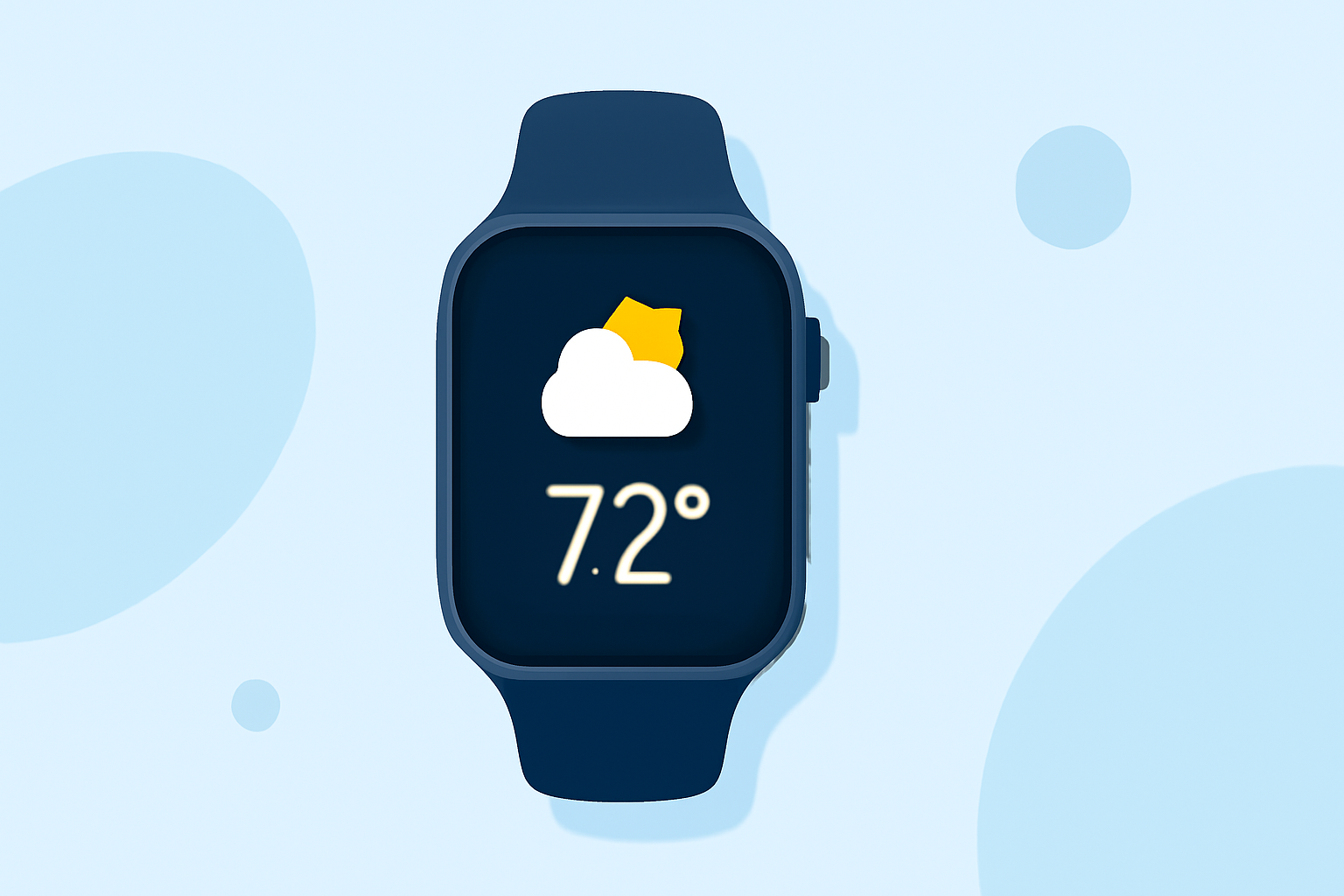
The Apple Watch's Weather Widget is a powerful tool that provides real-time weather updates directly on your wrist. Whether you're planning your day or preparing for a trip, this feature ensures you're always informed about the weather conditions around you.
What Does the Weather Widget Display?
The Weather Widget offers a comprehensive overview of current weather conditions, including:
- Temperature: Current temperature in your selected unit (Celsius or Fahrenheit).
- Conditions: Descriptions like clear, cloudy, or rainy.
- Precipitation: Information on rain or snow.
- Wind Speed: Current wind speed and direction.
- UV Index: Indicates the strength of ultraviolet radiation.
- Visibility: How far you can see clearly.
- Humidity: Percentage of moisture in the air.
- Air Quality: Levels of pollutants in the air.
These metrics help you make informed decisions about your daily activities.
How to Access the Weather Widget on Apple Watch
- Using the Weather App:
- Press the Digital Crown to access the app list.
- Tap on the Weather app to open it.
- The current weather conditions for your default location will be displayed.
- Using Siri:
- Activate Siri by saying, "Hey Siri," or by pressing and holding the Digital Crown.
- Ask, "What's the weather like?" or specify a location, such as "What's the weather in San Francisco?"
Customizing the Weather Widget
To tailor the Weather Widget to your preferences:
-
Change Default Location:
-
Open the Weather app on your iPhone.
-
Tap the List icon to view all locations.
-
Tap Edit and drag your preferred location to the top of the list.
-
The Apple Watch will sync this change automatically.
-
Add Multiple Locations:
-
In the Weather app on your iPhone, tap the List icon.
-
Tap the Plus (+) icon to add a new location.
-
Search for the desired city and tap Done.
-
Your Apple Watch will display weather information for all added locations.
Using the Weather Widget in the Smart Stack
The Smart Stack on your Apple Watch allows you to access the Weather Widget quickly:
-
View the Weather Widget:
-
Swipe up on the watch face to access the Smart Stack.
-
Scroll through the widgets until you find the Weather widget.
-
Customize the Smart Stack:
-
Press and hold the Smart Stack.
-
Tap Edit Stack.
-
Drag the Weather widget to your preferred position.
Troubleshooting the Weather Widget
If you're experiencing issues with the Weather Widget:
-
Check Location Services:
-
On your Apple Watch, go to Settings > Privacy & Security > Location Services.
-
Ensure Location Services is turned on.
-
Verify Internet Connection:
-
Ensure your Apple Watch is connected to Wi-Fi or paired with your iPhone via Bluetooth.
-
Restart Your Devices:
-
Restart both your Apple Watch and iPhone to resolve any temporary glitches.
By effectively utilizing the Weather Widget on your Apple Watch, you can stay prepared for any weather conditions, ensuring your daily plans are always on track.