
Weather Widget Basics: Mistakes to Avoid on Your Smart Display
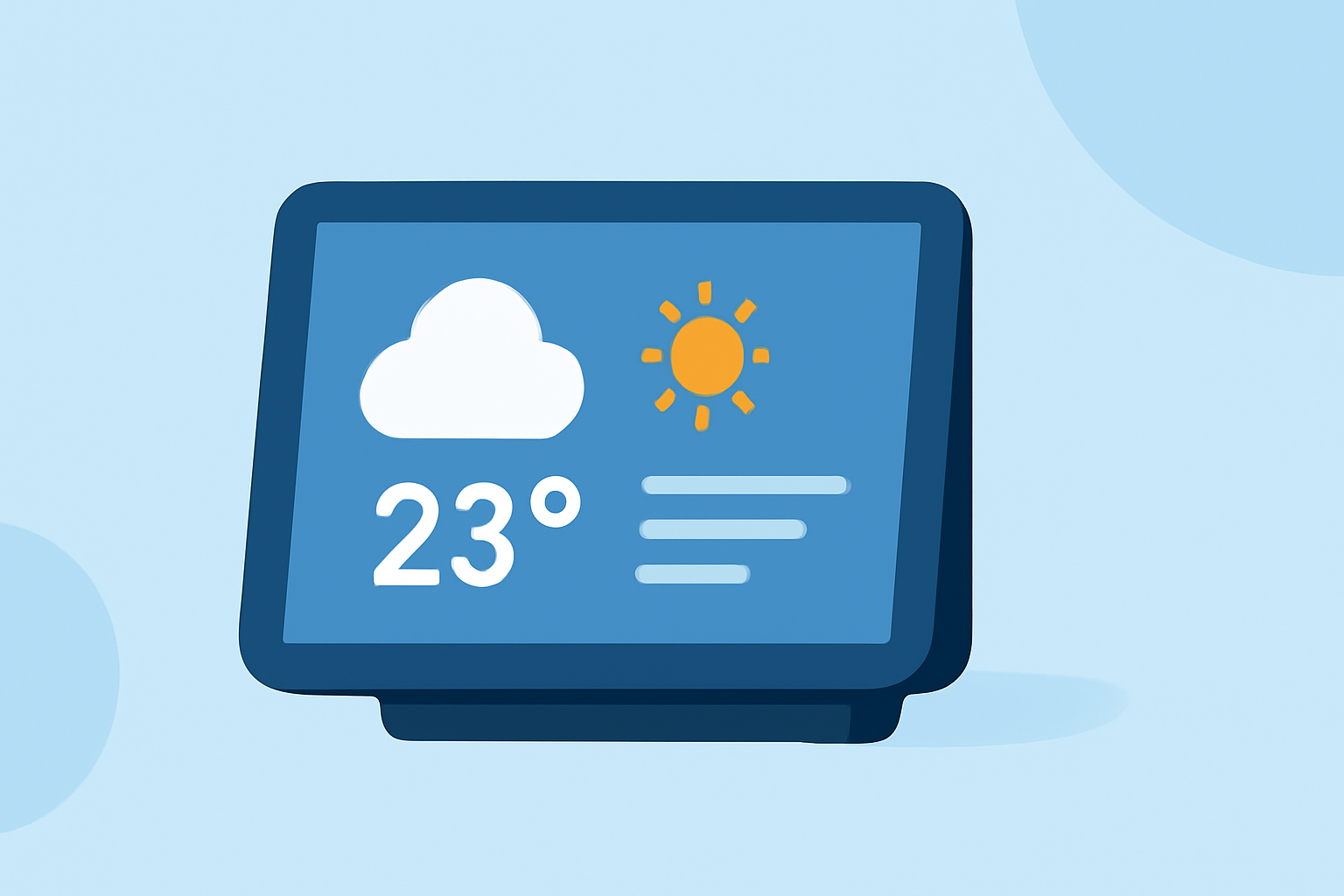
Integrating a weather widget into your smart display can provide real-time updates and enhance your daily planning. However, certain missteps can lead to inaccurate or outdated information. Here's how to avoid common pitfalls:
1. Why Is My Weather Widget Displaying Incorrect Information?
Inaccurate weather data often results from:
-
Outdated Data Sources: Relying on weather APIs with limited update frequencies can cause stale information.
-
Location Misconfigurations: Incorrect location settings may display weather for the wrong area.
-
Connectivity Issues: Weak or intermittent internet connections can prevent the widget from fetching the latest data.
2. How Can I Ensure My Weather Widget Provides Accurate and Timely Updates?
To maintain reliability:
-
Choose a Reliable Weather Service: Opt for services known for frequent updates and accuracy.
-
Verify Location Settings: Ensure your device's location services are enabled and correctly set to your area.
-
Maintain a Stable Internet Connection: A consistent connection is essential for real-time data retrieval.
3. What Are the Common Mistakes to Avoid When Setting Up a Weather Widget?
-
Overloading with Multiple Widgets: Using too many widgets can clutter your display and confuse users.
-
Neglecting Mobile-Friendly Design: Ensure the widget scales well on various devices, especially if your display is accessible via mobile.
-
Ignoring Customization Needs: Default settings may not align with your display's aesthetics or functional requirements.
4. How Do I Troubleshoot a Weather Widget That Isn't Updating?
If your widget isn't refreshing:
-
Check Internet Connectivity: Confirm that your device has a stable internet connection.
-
Update Software: Ensure your device's firmware and the widget's software are up to date.
-
Reset the Widget: Removing and re-adding the widget can resolve synchronization issues.
5. How Can I Enhance the Functionality of My Weather Widget?
To improve user experience:
-
Customize Appearance: Adjust colors, fonts, and layouts to match your display's theme.
-
Add Interactive Features: Incorporate touch or voice controls for a more engaging interface.
-
Integrate Additional Data: Include information like air quality, pollen counts, or local events for a comprehensive overview.
By addressing these aspects, you can ensure your smart display's weather widget delivers accurate, timely, and relevant information, enhancing its utility and user satisfaction.