
Weather Widget Basics: A Quick Guide
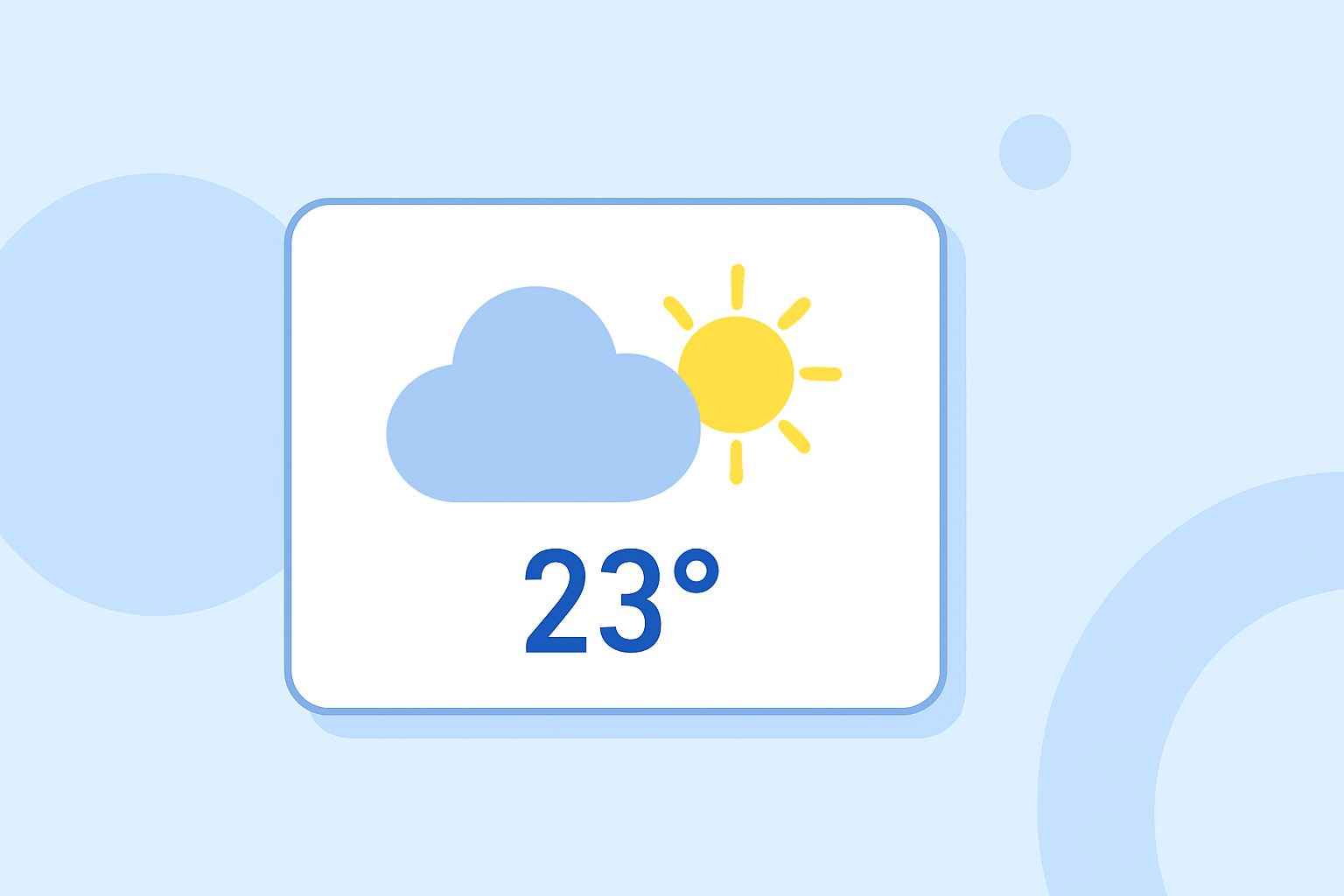
Weather widgets provide real-time weather information at a glance, enhancing your device's functionality and keeping you informed about current conditions. This guide will walk you through adding and customizing weather widgets on various platforms, including iPhone, Android, and your website.
What Are Weather Widgets?
Weather widgets are small applications that display current weather conditions, forecasts, and other meteorological data directly on your device's home screen or website. They offer quick access to weather updates without the need to open a dedicated app or website.
How to Add a Weather Widget to Your iPhone Home Screen
Adding a weather widget to your iPhone's home screen allows you to view weather updates instantly. Here's how to do it:
-
Access the Widget Gallery: Touch and hold an empty area on your home screen until the apps jiggle. Tap the '+' button in the top-left corner to open the widget gallery.
-
Select the Weather Widget: Scroll through the list or use the search bar to find the 'Weather' widget.
-
Choose a Widget Size: The Weather widget comes in different sizes, each displaying varying amounts of information. Tap on the size you prefer.
-
Add the Widget: Tap 'Add Widget', then position it on your home screen.
-
Customize the Widget (Optional): Touch and hold the widget, then tap 'Edit Widget' to select the location and other preferences.
For a visual demonstration, you can watch this tutorial:
How To Add Weather Widget On Home Screen On iPhone
How to Add a Weather Widget to Your Android Home Screen
On Android devices, adding a weather widget varies depending on the manufacturer and Android version. Here's a general guide:
-
Access Widgets: Long-press on an empty area of your home screen and select 'Widgets'.
-
Find the Weather Widget: Scroll through the list to find the 'Weather' widget.
-
Add the Widget: Long-press the widget and drag it to your home screen.
-
Customize the Widget: Depending on your device, you may be prompted to select a location or adjust settings.
For more detailed instructions, refer to this guide: (androidauthority.com)
How to Add a Weather Widget to Your Website
Integrating a weather widget into your website can enhance user experience by providing immediate weather information. Here's how to do it:
-
Choose a Weather Widget Service: Select a service that offers customizable weather widgets.
-
Customize the Widget: Enter your location, choose the display units (Celsius or Fahrenheit), and select a color theme that matches your website's design.
-
Generate the Embed Code: After customization, the service will provide an HTML embed code.
-
Insert the Embed Code into Your Website: Paste the embed code into the HTML of your website where you want the widget to appear.
For example, WeatherWidget.io offers a free, customizable, and responsive weather widget that you can integrate into your website.
Benefits of Using Weather Widgets
- Instant Access: View current weather conditions and forecasts without opening an app or website.
- Customization: Tailor the widget's appearance and information to suit your preferences.
- Enhanced User Experience: Provide valuable information to your website visitors, improving engagement.
Conclusion
Weather widgets are a convenient way to stay informed about current weather conditions and forecasts. Whether you're using an iPhone, Android device, or managing a website, adding a weather widget can enhance your daily routine and provide valuable information at a glance.
By following the steps outlined above, you can easily integrate weather widgets into your devices and website, ensuring you and your visitors have timely access to weather updates.