
Weather Widget Basics Tutorial
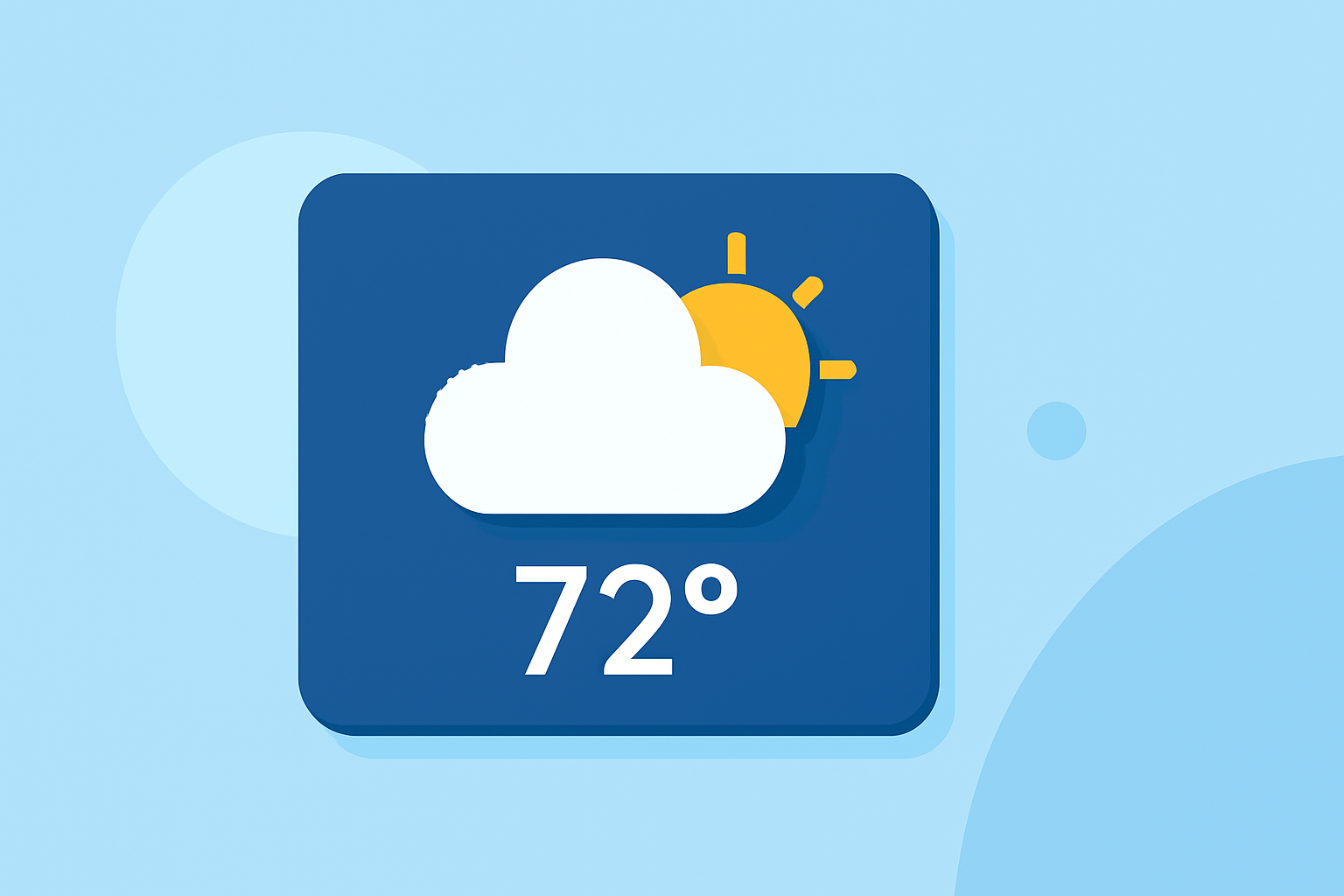
Weather widgets are convenient tools that provide real-time weather information directly on your device's home screen or website. They display current conditions, forecasts, and other relevant data, allowing you to stay informed at a glance.
What Are Weather Widgets?
Weather widgets are small applications that display weather information on your device's home screen or website. They typically show current temperature, weather conditions (e.g., sunny, cloudy, rainy), and forecasts for upcoming days. Widgets can be customized in terms of size, appearance, and the specific information they display.
Why Use Weather Widgets?
- Instant Access: Quickly view weather updates without opening a separate app or website.
- Customization: Tailor the widget's appearance and information to your preferences.
- Convenience: Keep track of weather conditions for multiple locations simultaneously.
How to Add a Weather Widget to Your iPhone Home Screen
Adding a weather widget to your iPhone's home screen allows you to access weather information instantly. Here's how to do it:
- Enter Jiggle Mode: Touch and hold an empty area on your home screen until the apps start wiggling.
- Access Widgets: Tap the '+' button in the top-left corner to open the widget gallery.
- Select Weather Widget: Scroll down and tap on the 'Weather' widget.
- Choose Widget Size: Swipe through the available sizes and tap 'Add Widget' to place it on your home screen.
- Position the Widget: Drag the widget to your desired location on the screen.
- Exit Jiggle Mode: Tap 'Done' in the top-right corner to save your changes.
For more detailed instructions, refer to Apple's official guide on using weather widgets on iPhone. (support.apple.com)
How to Add a Weather Widget to Your Android Home Screen
Adding a weather widget to your Android device's home screen provides quick access to weather updates. Here's how to do it:
- Enter Widget Selection Mode: Touch and hold an empty area on your home screen until options appear.
- Access Widgets: Tap on 'Widgets' to view available widgets.
- Find Weather Widget: Scroll through the list to find the 'Weather' widget.
- Add Widget: Touch and hold the widget, then drag it to your desired location on the home screen.
- Resize Widget (Optional): Adjust the widget's size by dragging its edges.
Note: The exact steps may vary depending on your device and Android version. For more information, refer to Android Authority's guide on Android weather widgets. (androidauthority.com)
How to Add a Weather Widget to Your Website
Incorporating a weather widget into your website can enhance user experience by providing real-time weather information. Here's how to do it:
- Choose a Weather Widget Provider: Select a service that offers customizable weather widgets.
- Customize the Widget: Configure the widget's appearance, location, and the information it displays.
- Generate Embed Code: After customization, generate the embed code provided by the service.
- Insert Embed Code into Website: Paste the embed code into the HTML of your website where you want the widget to appear.
For example, WeatherWidget.io offers a free, customizable, and responsive weather widget that can be easily integrated into your website. (weatherwidget.io)
How to Customize a Weather Widget
Customizing your weather widget allows you to tailor it to your preferences and website design. Here's how to do it:
- Access Widget Settings: Log in to the widget provider's platform and navigate to the widget customization section.
- Adjust Appearance: Modify settings such as color scheme, size, and layout to match your website's design.
- Set Location: Specify the location for which you want to display weather information.
- Configure Data Display: Choose which weather data (e.g., temperature, humidity, wind speed) to display.
- Save and Embed: Save your customized widget and embed the provided code into your website.
For detailed instructions, refer to the widget provider's documentation or support resources.
How to Add a Weather Widget to Your iPhone Lock Screen
Adding a weather widget to your iPhone's Lock Screen allows you to view weather information without unlocking your device. Here's how to do it:
- Enter Lock Screen Customization: Wake up your iPhone and press and hold the Lock Screen until options appear.
- Tap 'Customize': Select the 'Customize' option to edit your Lock Screen.
- Add Widget: Tap the '+' button to add a new widget.
- Select Weather Widget: Scroll through the widget options and tap on the 'Weather' widget.
- Position Widget: Drag the widget to your desired location on the Lock Screen.
- Save Changes: Tap 'Done' to save your customized Lock Screen.
For more information, refer to iDownloadBlog's guide on showing weather on your iPhone Lock Screen. (idownloadblog.com)
Conclusion
Weather widgets are valuable tools that provide quick access to real-time weather information on your devices and website. By following the steps outlined above, you can easily add and customize weather widgets to suit your needs.
For a visual demonstration of adding a weather widget to your iPhone's home screen, you can watch the following tutorial: