
Mastering Weather Widgets in Your Car: A Comprehensive Guide
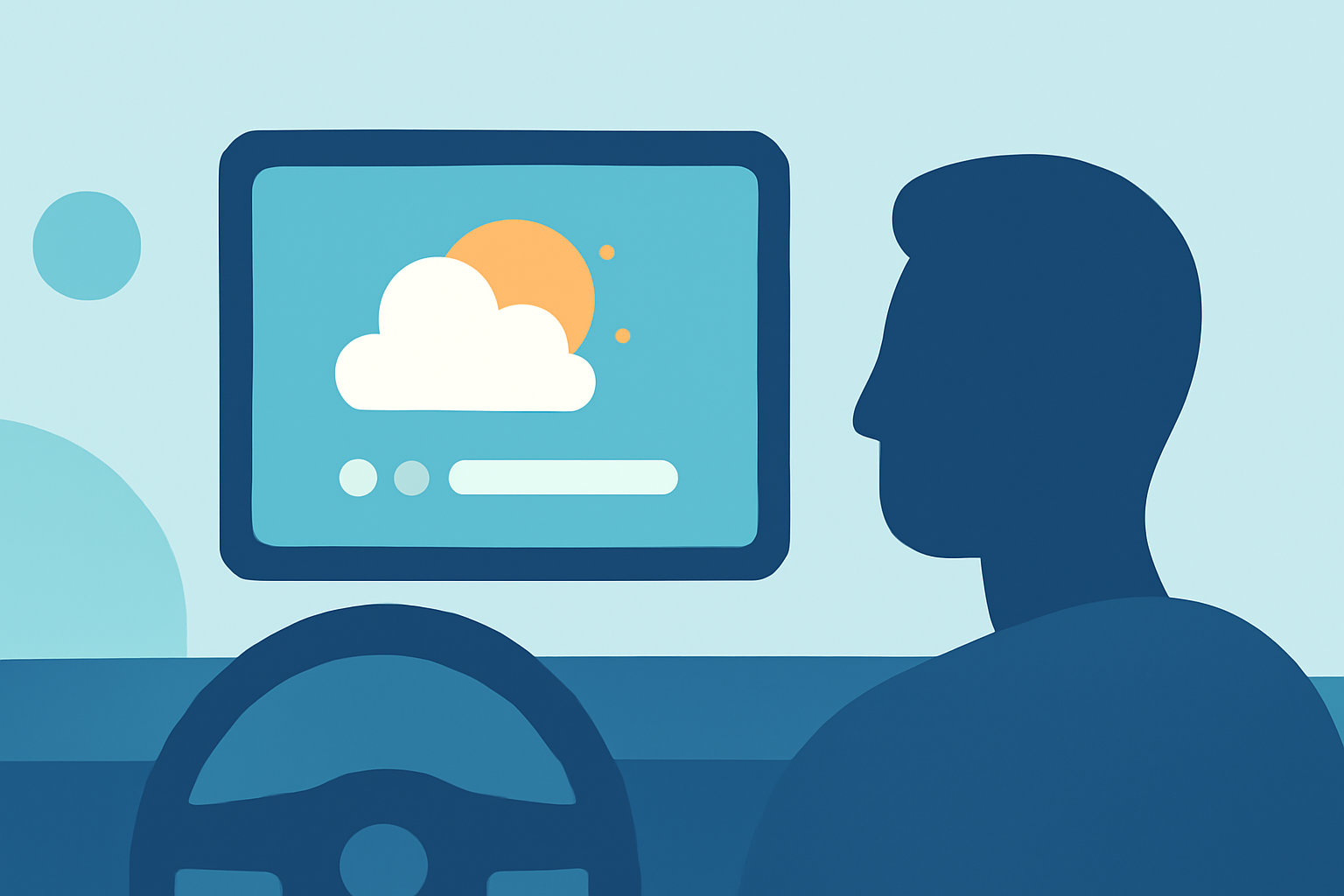
Integrating weather widgets into your car's infotainment system enhances your driving experience by providing real-time weather updates at a glance. This guide will walk you through the process of adding and customizing weather widgets, ensuring you stay informed and safe on the road.
What Are Weather Widgets?
Weather widgets are interactive elements that display current weather conditions, forecasts, and other meteorological information directly on your car's infotainment screen. They offer quick access to essential weather data without the need to open a separate app, allowing you to make informed decisions about your journey.
How to Add a Weather Widget to Your Car's Infotainment System
-
Check Compatibility: Ensure your car's infotainment system supports widget integration. Many modern systems, especially those compatible with Apple CarPlay or Android Auto, offer this feature.
-
Install a Compatible Weather App: Download a weather app that supports widget functionality and is compatible with your infotainment system. Some apps may require specific permissions or settings adjustments to function correctly within your car's interface.
-
Connect Your Smartphone: Use a USB cable or wireless connection to link your smartphone to your car's infotainment system. This connection is essential for transferring the widget from your phone to the car's display.
-
Add the Widget: Navigate to the widget section on your car's infotainment screen. This process varies depending on the system:
-
Apple CarPlay: Go to Settings > General > CarPlay on your iPhone, select your car, and tap "Widgets." From there, you can add the weather widget. (support.apple.com)
-
Android Auto: Access the widget settings through the Android Auto app on your smartphone, then add the weather widget to your car's display.
Customizing Your Weather Widget
Personalizing your weather widget ensures it provides the most relevant information for your needs:
-
Location Settings: Set the widget to display weather information for your current location or a specific area of interest.
-
Display Preferences: Choose between different widget styles, such as compact or detailed views, depending on the amount of information you wish to see.
-
Update Frequency: Adjust how often the widget refreshes its data to balance between timely updates and conserving your smartphone's battery life.
Safety Considerations
While weather widgets are designed to enhance your driving experience, it's crucial to use them responsibly:
-
Minimal Interaction: Interact with the widget only when the vehicle is stationary to avoid distractions.
-
Voice Commands: Utilize voice commands to access weather information, allowing you to keep your hands on the wheel and eyes on the road.
-
Regular Updates: Ensure your weather app and infotainment system are updated regularly to maintain compatibility and access the latest features.
Troubleshooting Common Issues
If you encounter problems with your weather widget, consider the following steps:
-
Connectivity Check: Verify that your smartphone is properly connected to the infotainment system.
-
App Permissions: Ensure the weather app has the necessary permissions to access location services and display information on the infotainment screen.
-
Software Updates: Check for updates for both your smartphone and the infotainment system, as updates often resolve compatibility issues.
By effectively integrating and customizing weather widgets in your car, you can access timely weather information, enhancing your driving experience and safety.