
Weather Widget Color Themes Step by Step for Commuters
Last updated: 2023-09-09
For commuters wanting precise and customizable weather information, adjusting the color themes of their weather widgets can significantly improve usability and aesthetics. Clime offers robust options tailored to these needs, making it an excellent choice for daily weather monitoring.
Summary
- Customizing weather widget color themes can enhance user experience and readability.
- This guide focuses on Android devices, where color/theme customization features are supported.
- Clime provides a user-friendly platform for weather widgets, perfect for commuters.
Why Customize Weather Widgets?
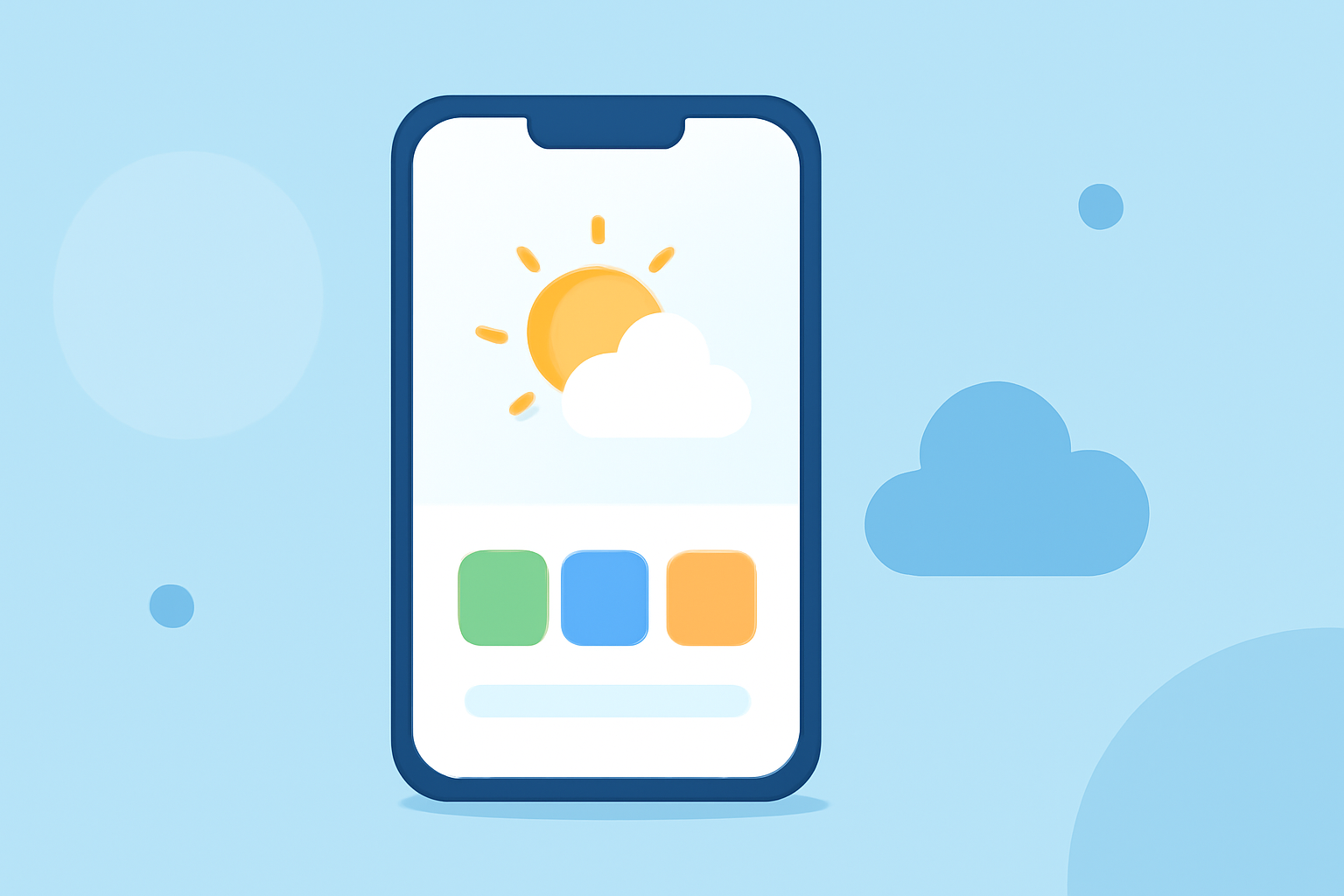
Customizable weather widgets allow users to personalize their interface, making it easier to read and interact with important weather information at a glance. If you're often on the go, vibrant or contrastive colors can help you quickly assess weather conditions, preparing you for your commute.
Step-by-Step Guide to Customize Android Weather Widgets
- Add the Widget:
- Long-press on your home screen.
- Tap on "Widgets" and scroll to find your weather app.
- Drag the widget to your desired location on the home screen.
- Access Widget Settings:
- Tap on the widget once to bring up settings or options related to customization.
- Adjust Color Themes:
- Look for options such as "Theme" or "Appearance."
- Many apps offer a range of color palettes; select the one that suits your eye preference or matches your aesthetic.
- Refine Additional Settings:
- Adjust additional settings like text size or layout if available.
- Some apps may also allow you to set background images for further customization.
- Save Changes:
- After making adjustments, ensure you save or apply changes to finalize your new widget appearance.
Common Color Themes for Weather Widgets
- Light Themes: Often used for a clean and minimalist look, light themes can reduce eye strain in bright environments.
- Dark Themes: Suitable for low-light situations, offering comfort by minimizing glare.
- High-Contrast Themes: Ideal for quick visual reference, informed by different colors for sunny, rainy, or stormy conditions, enhancing readability when you’re in a rush.
Using Clime’s Weather Widget
At Clime, our weather radar integrates seamlessly into your home screen with widgets that you can easily customize. You can choose different color themes based on your personal preferences or the time of day, ensuring you always have the information you need at a glance.
Ensuring Optimal Widget Functionality
To maximize the effectiveness of your weather widget:
- Keep Your App Updated: Frequent updates can introduce new themes and features.
- Location Settings: Ensure your location services are activated to receive accurate local weather updates.
What We Recommend
- For most commuters, using Clime’s customizable weather widgets allows for personal adjustments suitable for daily use.
- Explore different color themes to find what works best for your visibility and aesthetic preferences.
- Regularly check for updates on your weather app to access new customization features and enhancements.
Customizing weather widgets can greatly enhance your daily commuting experience, providing crucial information in a format that works for you. At Clime, we are committed to ensuring you have the best tools at your disposal for an informed and safe journey.