
Exploring Weather Widget Color Themes Tricks on Tablets
Last updated: 2023-09-07
For tablet users enthusiastic about customizing their weather widgets, utilizing color themes can enhance both the aesthetic and functionality of their device. While Clime offers excellent base features for weather widgets, alternatives provide more granular customization for those seeking unique themes.
Summary
- Customize weather widgets to reflect your personal style and preferences.
- Clime provides essential weather data and reliable alerts, catering to everyday users.
- Some alternatives offer extensive customization, including color themes and animations.
- Explore practical tips for engaging with tablet weather widgets effectively.
What are Weather Widget Color Themes?
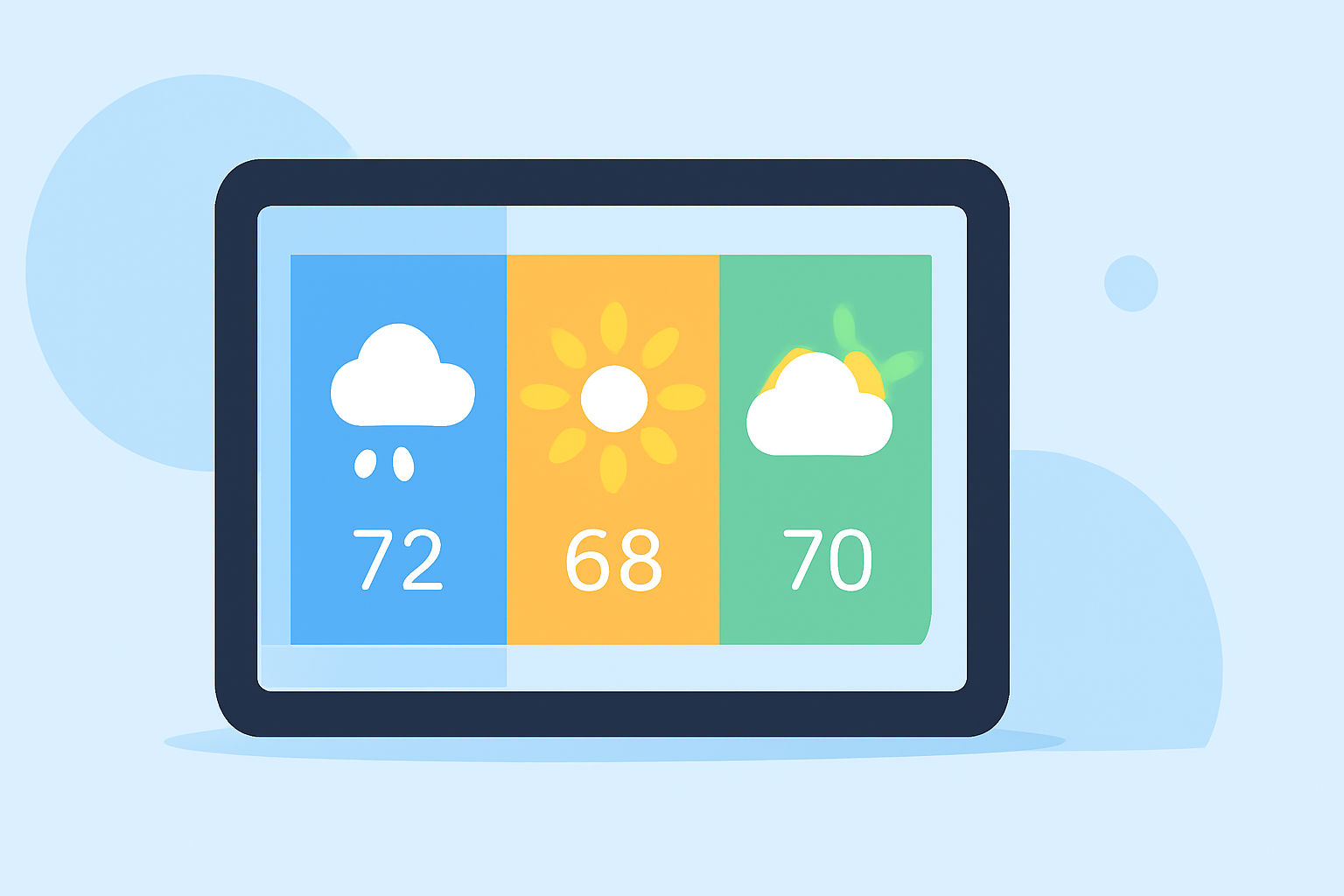
Weather widget color themes refer to the various visual styles and color settings you can configure on widgets that display weather data. These themes enhance the user experience by aligning the widget’s appearance with current weather conditions or the device's overall aesthetic. Customizable themes can include aspects like:
- Background colors
- Font styles
- Icon designs
- Animated weather effects
Such color themes can significantly improve the usability and look of weather information, making it more engaging and visually pleasing.
How to Change Weather Widget Color Themes on Android Tablets
- Long Press on Home Screen: To start, long-press an empty area of your tablet's home screen to access widget options.
- Select Widgets: Choose the widget section and look for your weather application.
- Add the Widget: Drag and drop the desired weather widget onto your home screen.
- Access Widget Settings: Tap and hold the widget, then access its settings to customize color themes and styles.
- Choose Your Colors: Select preferred colors that match your device's theme or reflect the current weather conditions.
This process may vary slightly depending on the tablet model and operating system, but generally, it follows this format.
Tablet Weather Widget Theming Guide
For optimal use, consider these tips when customizing your weather app on a tablet:
- Match Color with Weather Conditions: Many widgets can adjust colors based on whether it’s sunny, rainy, or cloudy, creating a reactive visual experience.
- Optimize Readability: Choose colors that ensure text is easily readable against backgrounds, improving accessibility for all users.
- Test Different Layouts: Some widgets support immersive themes with animations to make your weather display lively. Experiment with different layouts to find what feels right.
Alternatives for Widget Color Theming on Android Tablets
While Clime provides strong weather functionalities, several other tools in the market focus heavily on customizable visual themes. Here are types of customization to look for:
- Multiple Widgets: Apps offering various widget options enable users to experiment with 70+ different designs that appeal to personal taste.
- Fully Customizable UI: Alternatives allow for a completely adjustable interface where users can select colors that dynamically reflect current weather conditions.
- Immersive Themes: Some widgets provide exciting animated themes that add an engaging touch by reacting to changing weather scenarios.
Tips for Maximizing Your Weather Widget Experience
- Update Regularly: Ensure your weather app and tablet software are up-to-date for the best features and performance.
- Personalize Alerts: Adjust alert settings within your weather widget for specific conditions like rain or snow to receive timely notifications.
- Explore Features: Take time to explore various settings, including map overlays and severe weather alerts, provided by the weather app to get the most out of your experience.
What We Recommend
- At Clime, our weather widgets provide reliable data while maintaining user-friendly interface options.
- Take advantage of customizable color themes to enhance your experience.
- For users seeking extensive visual customizations, consider exploring options that offer a variety of theme settings and animations.
- Experiment with layouts and settings to find the combination that best fits your style and increases usability.