
Weather Widget Customization Tips on Wear OS
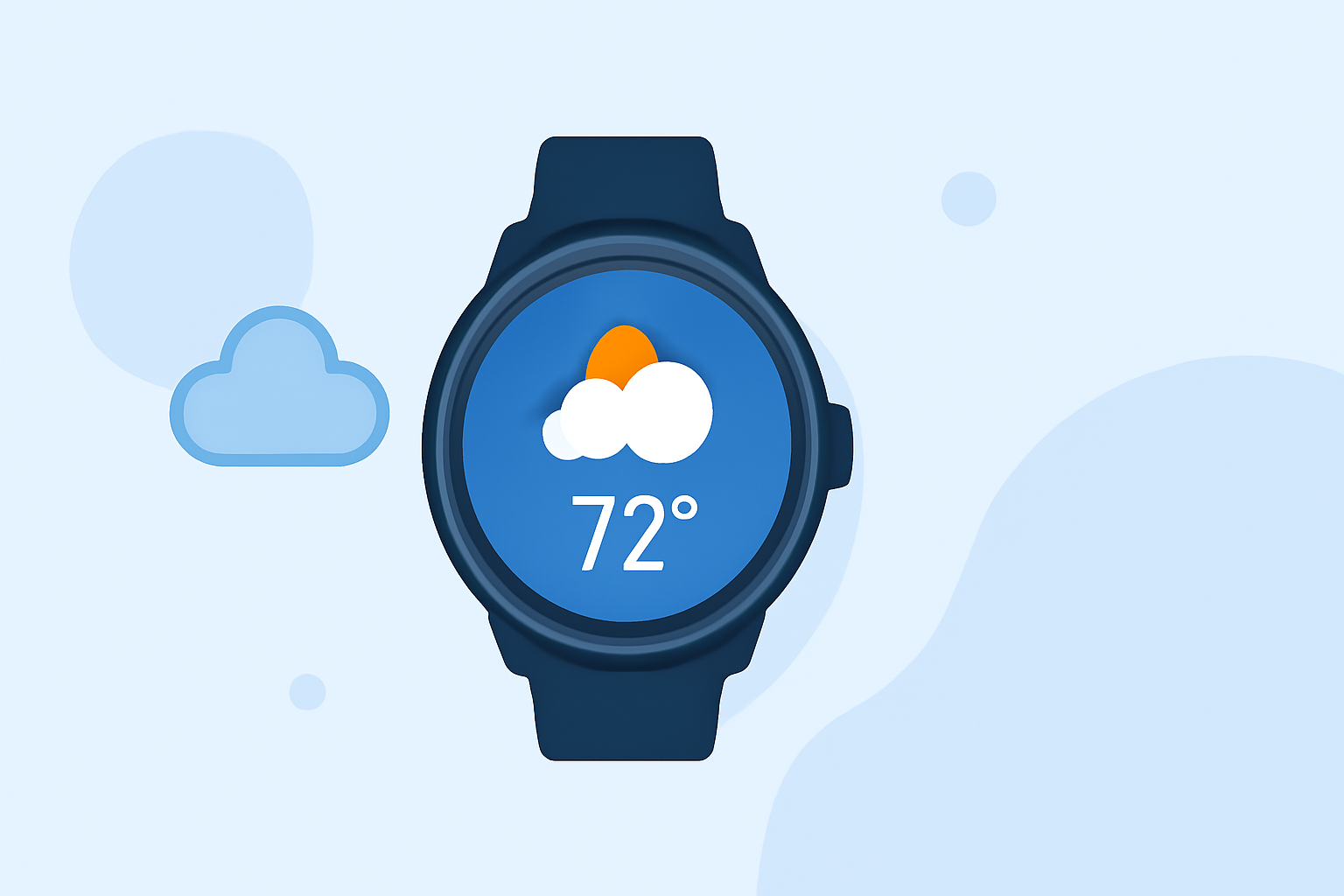
Personalizing your Wear OS smartwatch's weather widget enhances your experience by providing timely and relevant weather information directly on your wrist. Here's how you can customize it:
1. Adding the Weather Tile
Tiles are interactive widgets that offer quick access to various features, including weather updates. To add the Weather Tile:
-
On Your Watch:
-
Swipe left to view your current Tiles.
-
Continue swiping until you reach the end, then tap the Add tiles (+) icon.
-
Select the Weather Tile from the list.
-
Using the Wear OS App:
-
Open the Wear OS app on your smartphone.
-
Navigate to the Tiles section.
-
Tap the + icon to add a new Tile.
-
Choose the Weather Tile from the available options.
This process allows you to quickly access current weather conditions and forecasts directly from your smartwatch. (makeuseof.com)
2. Customizing the Weather Tile
Once the Weather Tile is added, you can customize it to display the information most relevant to you:
-
On Your Watch:
-
Swipe left to view your Tiles.
-
Press and hold the Weather Tile to enter edit mode.
-
Tap the Settings icon (gear-shaped) to adjust the displayed information, such as temperature units (Celsius or Fahrenheit), wind speed units, and the inclusion of additional details like UV index or air quality.
-
Using the Wear OS App:
-
Open the Wear OS app on your smartphone.
-
Go to the Tiles section.
-
Tap the Settings icon next to the Weather Tile to customize its content.
This customization ensures that the Weather Tile provides the most pertinent information for your needs. (makeuseof.com)
3. Utilizing Watch Face Complications
Complications are small widgets integrated into your watch face that display additional information, such as weather updates. To add a weather complication:
-
On Your Watch:
-
Touch and hold your current watch face to enter customization mode.
-
Swipe right to access the complications settings.
-
Select the complication slot you wish to modify.
-
Choose the Weather complication from the list.
-
Using the Wear OS App:
-
Open the Wear OS app on your smartphone.
-
Navigate to the Watch Faces section.
-
Select your current watch face and tap Customize.
-
Modify the complication slots to include the Weather complication.
This integration allows you to view weather information directly on your watch face, providing immediate access to essential data. (makeuseof.com)
4. Managing Weather Data Sources
Wear OS devices may utilize different weather data sources, such as the Pixel Weather app or other third-party applications. To ensure accurate and up-to-date information:
-
On Your Watch:
-
Open the Weather app to view current conditions and forecasts.
-
If the app is not functioning correctly, check for updates in the Google Play Store or consult the app's support resources.
-
Using the Wear OS App:
-
Open the Wear OS app on your smartphone.
-
Navigate to the Tiles section to manage and update your weather-related Tiles.
Regularly updating your weather apps and Tiles ensures that you receive the most accurate and timely information. (androidcentral.com)
By customizing your Wear OS smartwatch's weather widget, you can tailor your device to provide the most relevant and timely weather information, enhancing your daily experience.