
Weather Widget Locations for Beginners on Wear OS
Last updated: 2023-09-15
To effectively utilize weather widgets on Wear OS, beginners should ensure their devices have location permissions enabled for accurate weather data. Clime provides an ideal solution for monitoring weather with user-friendly widgets and alerts.
Summary
- Ensure location permissions are set for accurate weather data.
- Clime’s widgets provide seamless access to localized weather information.
- Compatibility may vary based on the version of Wear OS you’re using.
- Always check settings to manage how data is accessed and displayed.
How to Add and Customize a Weather Widget on Wear OS for Beginners
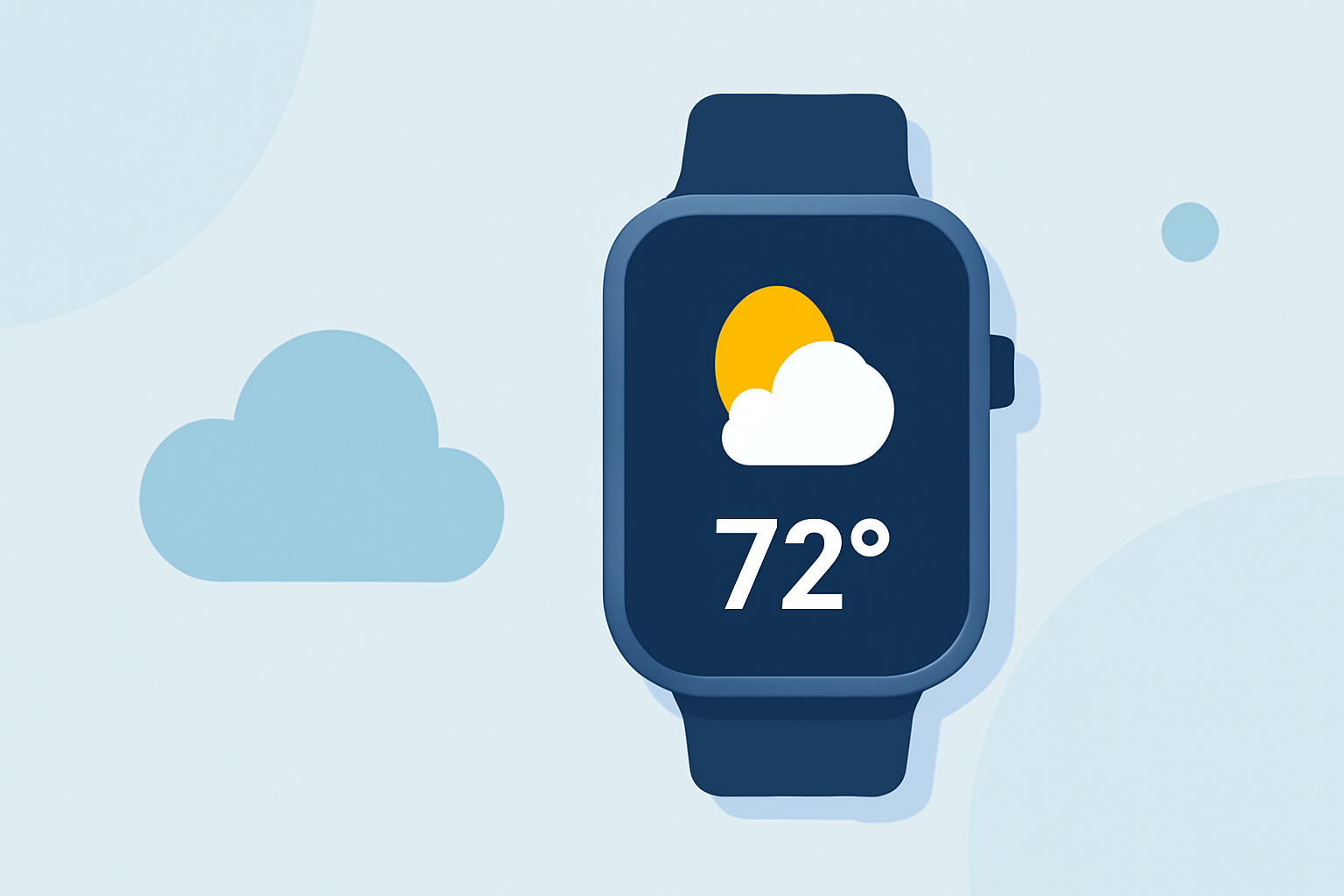
To add a weather widget to your Wear OS device, follow these steps:
- Long-press on the watch face to enter customization mode.
- Select 'Widgets' or the equivalent option available on your device.
- Scroll through the list to locate the weather widget and tap to add it.
- Customize the widget settings to display the desired location.
With Clime, the configuration is straightforward; simply select your preferred location to receive localized forecasts and alerts directly on your watch face.
Location Data Sources and Permissions for Wear OS Weather Widgets
Weather data on Wear OS devices heavily relies on accurate location settings. Here’s how:
- Location Awareness: Ensure your Wear OS device knows your location. This is critical because weather data is tailored based on where you are. As noted in official guidance, "To obtain weather data, the Wear OS device must be aware of the device location."
- Manage Permissions: Go into your device settings to allow your weather app access to your location. This allows the app to deliver accurate and timely updates based on your current location. Instructions can usually be found in the watch’s settings or under the app's permissions section.
Compatibility with Wear OS Versions
When using weather widgets, compatibility with your version of Wear OS is essential. The latest features are often best suited for devices using Wear OS 6 or newer. Beginners should ensure their devices are updated to enjoy enhanced functionality and data accuracy.
Utilizing Clime for Enhanced Weather Tracking
Clime’s weather app stands out by offering not just basic weather updates but also detailed NOAA-based radar imagery. Features include:
- Interactive Radar: Visualize precipitation and weather patterns in real-time.
- Custom Alerts: Get notifications for severe weather, ensuring you're always informed.
- Extended Forecast: View hourly and 14-day weather trends at a glance.
What We Recommend
- Set Location Permissions: Always enable location services for the accurate functioning of weather widgets.
- Use Clime for Easy Setup: Clime provides intuitive options for customizing weather information based on your preferred locations.
- Stay Updated: Regularly check for any updates to your Wear OS to ensure compatibility and access to the latest features.
- Explore Widget Settings: Don’t hesitate to adjust widget settings for personalized weather tracking that suits your daily needs.