
How to Manage Weather Widget Locations on Your iPad
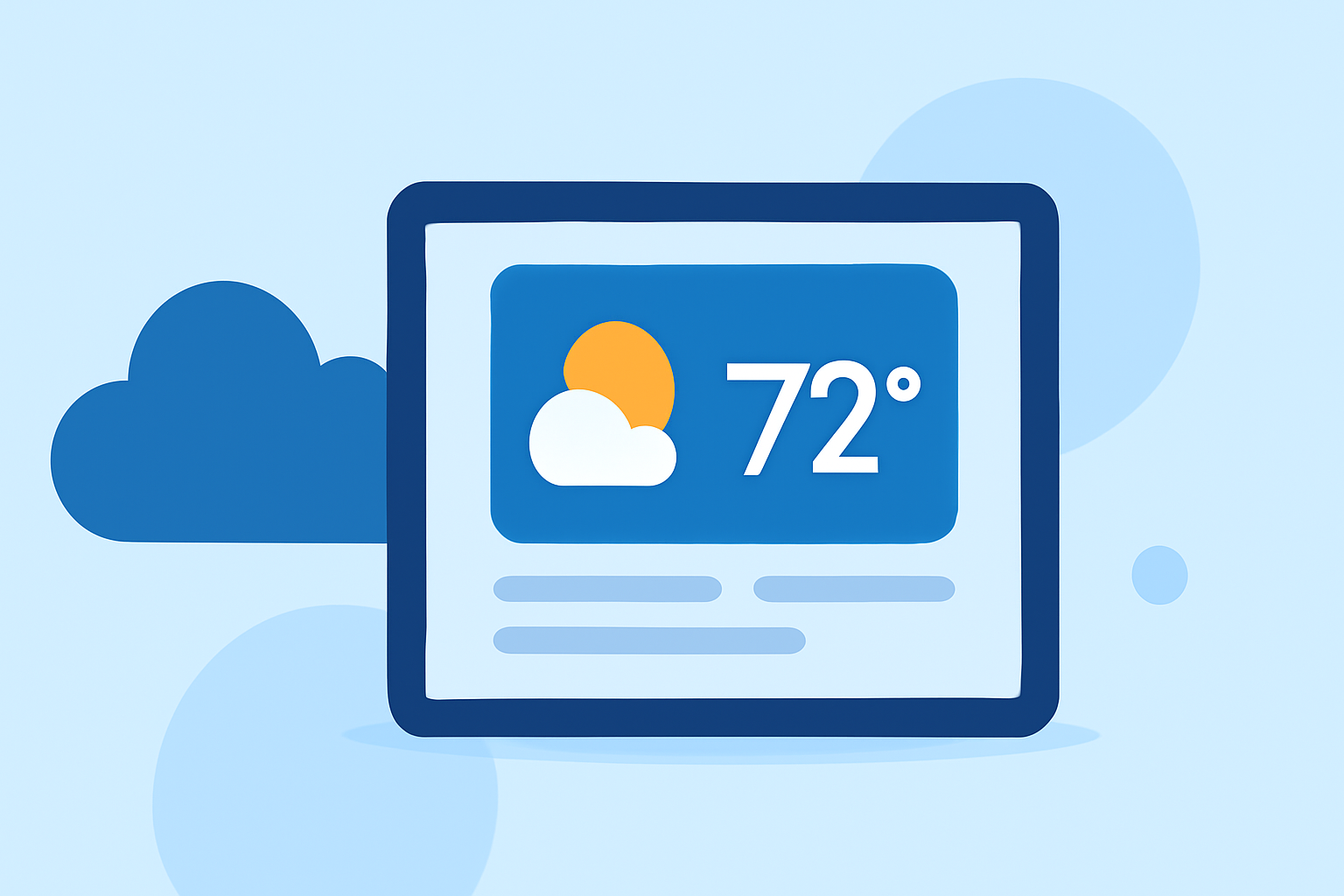
The Weather widget on your iPad provides quick access to current conditions and forecasts directly from your Home Screen. By default, it displays the weather for your current location. However, you can customize it to show weather information for multiple locations, making it easier to stay informed about conditions in different areas.
Adding Multiple Weather Widgets
To monitor weather conditions in various locations simultaneously, you can add multiple Weather widgets to your Home Screen:
-
Enter Jiggle Mode: Touch and hold an empty area on your Home Screen until the apps and widgets begin to jiggle.
-
Add a Widget: Tap the + button in the top-left corner to open the widget gallery.
-
Select Weather Widget: Scroll through the list of available widgets and tap on Weather.
-
Choose Widget Size: Select the widget size that best fits your Home Screen layout.
-
Add Widget: Tap Add Widget to place it on your Home Screen.
-
Position the Widget: Drag the new widget to your desired location on the screen.
-
Exit Jiggle Mode: Tap Done in the top-right corner to save your changes.
Repeat these steps to add additional Weather widgets for other locations. Each widget can display weather information for a different city or region, allowing you to monitor conditions in multiple areas at a glance.
Customizing Each Weather Widget
To set a specific location for each Weather widget:
-
Edit the Widget: Touch and hold the Weather widget you want to customize until a menu appears.
-
Select Edit Widget: Tap Edit Widget from the menu.
-
Choose Location: Tap the location field (e.g., My Location or the current city displayed).
-
Search for a City: Enter the name of the city or region you want to display.
-
Select the Location: Tap the correct location from the search results.
-
Save Changes: Tap anywhere outside the widget to save your changes and return to the Home Screen.
By customizing each widget, you can have multiple Weather widgets on your Home Screen, each displaying the forecast for a different location. This feature is particularly useful for monitoring weather conditions in places you frequently visit or have an interest in.
Using the Weather App for Multiple Locations
In addition to the widgets, the Weather app on your iPad allows you to add and manage multiple locations:
-
Open the Weather App: Tap the Weather app icon on your Home Screen.
-
Add a Location: Tap the + button in the bottom-right corner.
-
Search for a City: Enter the name of the city or region you want to add.
-
Select the Location: Tap the correct location from the search results.
-
Repeat for Additional Locations: Continue adding locations as needed.
Once added, you can swipe between locations within the Weather app to view their respective forecasts. This method complements the widgets by providing a more detailed view of weather conditions across different areas.
Tips for Managing Weather Widgets and Locations
-
Widget Stacks: To save space on your Home Screen, consider creating a widget stack. This allows you to stack multiple widgets of the same size on top of each other and swipe through them. To create a stack, drag one widget on top of another. You can then swipe through the stack to view different locations' weather information.
-
Location Services: Ensure that your iPad's location services are enabled for the Weather app to provide accurate current location information. Go to Settings > Privacy > Location Services, and toggle on Location Services. Then, scroll down to Weather and select While Using the App or Always.
-
Updating Locations: If you travel frequently, remember to update the location in your Weather widgets to reflect your current area. You can do this by editing the widget as described above.
By effectively managing your Weather widgets and app locations, you can stay informed about weather conditions in multiple areas directly from your iPad's Home Screen.