
Common Mistakes to Avoid When Using Weather Widgets on Smart Displays
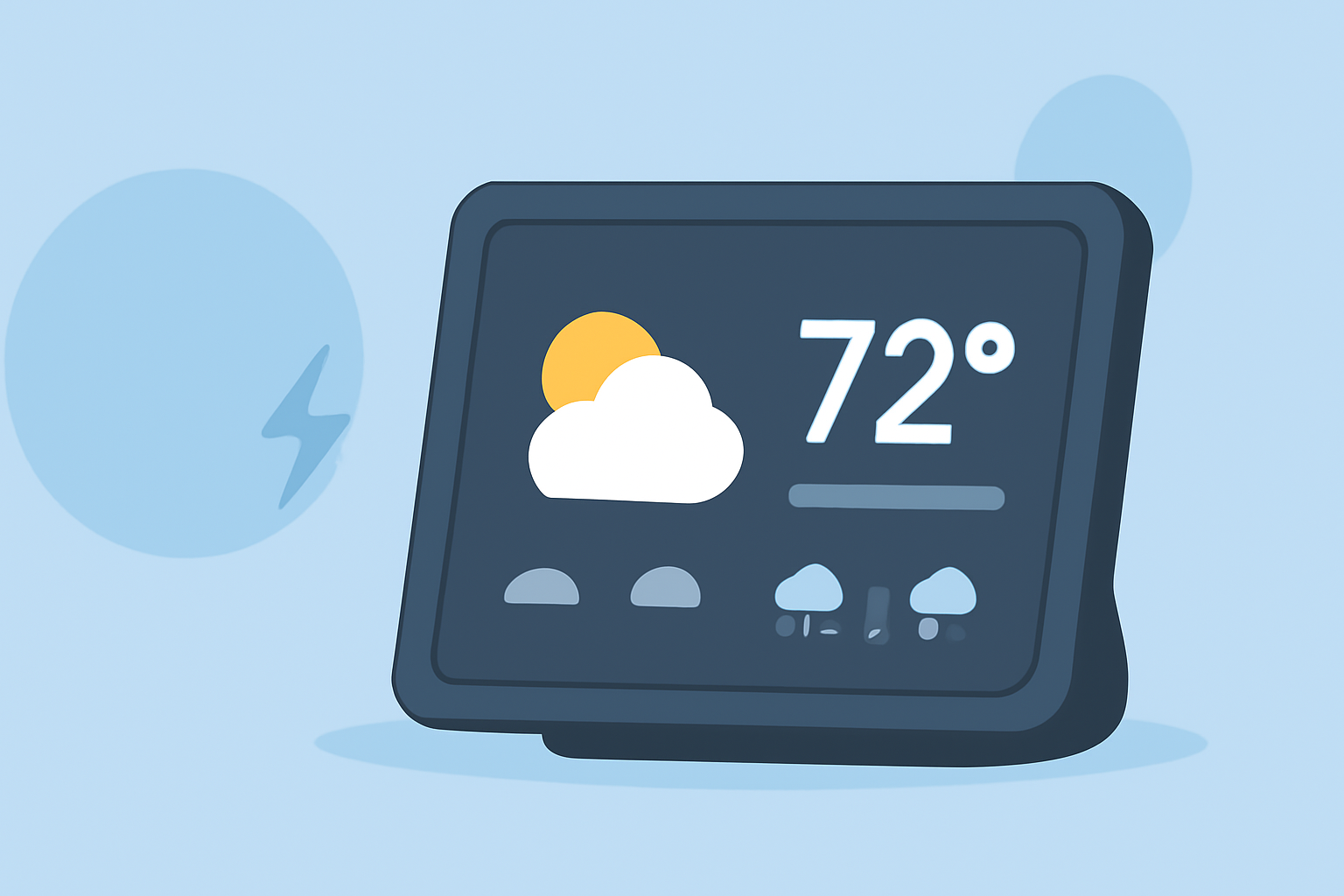
Weather widgets on smart displays offer convenient, real-time weather updates at a glance. However, users often encounter issues such as outdated information, incorrect locations, or non-responsive widgets. Understanding and addressing these common mistakes can enhance your experience and ensure you receive accurate weather data.
1. Is Your Smart Display Connected to the Internet?
A stable internet connection is essential for weather widgets to function correctly. Without it, widgets may fail to update or display outdated information. Ensure your smart display is connected to Wi-Fi and has access to the internet.
2. Have You Enabled Location Services?
Weather widgets rely on location data to provide accurate forecasts. If location services are disabled or misconfigured, the widget may display weather information for an incorrect location. Check your device's settings to ensure location services are enabled and that the widget has permission to access your location.
3. Is the Widget Displaying the Correct Location?
Sometimes, the widget may default to a different location. Manually setting the correct location can resolve this issue. Access the widget's settings and input your desired location to ensure accurate weather updates.
4. Have You Updated Your Device's Software?
Outdated software can lead to compatibility issues with widgets. Regularly updating your device's firmware or operating system can resolve these problems. Check for available updates in your device's settings and install them as needed.
5. Is the Widget's Data Source Functioning Properly?
Weather widgets depend on external data sources or APIs to fetch weather information. If these services are experiencing outages or issues, your widget may display incorrect or no data. Verify that the data source is operational and that your widget is configured to use it correctly.
6. Have You Restarted Your Device?
Sometimes, a simple restart can resolve temporary glitches affecting widget performance. Power off your smart display, wait a few seconds, and then turn it back on to see if the issue persists.
7. Is the Widget's Cache or Data Corrupted?
Corrupted cache or data can cause widgets to malfunction. Clearing the widget's cache or resetting its data can often resolve these issues. Refer to your device's user manual or support resources for instructions on how to perform this action.
8. Are There Any Known Issues with the Widget?
Occasionally, software updates or changes can introduce bugs affecting widget functionality. Check the manufacturer's website or support forums for any known issues or updates related to the weather widget.
By systematically addressing these common mistakes, you can ensure that your weather widget provides accurate and timely information, enhancing your smart display experience.