
Mastering Weather Widgets on Your Apple Watch
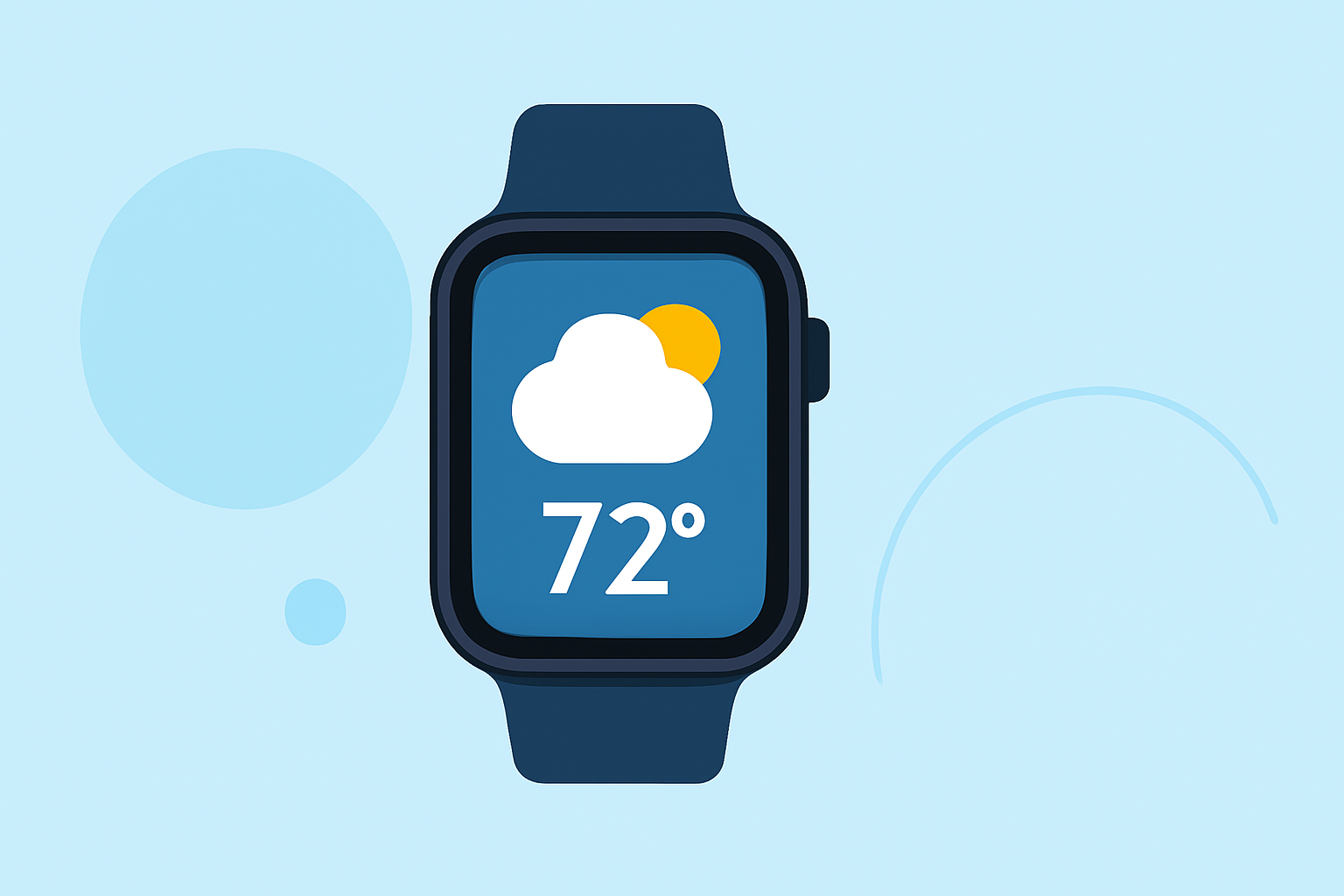
Weather widgets on your Apple Watch provide quick access to current and forecasted weather information, keeping you prepared for any conditions. Here's how to set up and utilize these widgets effectively.
What Are Weather Widgets on Apple Watch?
Weather widgets are small, interactive elements that display weather data directly on your Apple Watch face or in the Smart Stack. They offer at-a-glance information such as temperature, precipitation, wind speed, and more, without the need to open the full Weather app.
How to Add a Weather Widget to Your Apple Watch Face
-
Press and Hold the Watch Face: On your Apple Watch, press and hold the current watch face until it enters customization mode.
-
Tap the Edit Button: Tap the 'Edit' option that appears below the watch face.
-
Navigate to the Complications Section: Use the Digital Crown to scroll to the 'Complications' section.
-
Select a Complication Slot: Choose a slot where you want to add the weather widget.
-
Choose the Weather Widget: Scroll through the available complications and select the weather widget.
-
Press the Digital Crown: After selecting, press the Digital Crown to save your changes.
Using the Weather App on Apple Watch
The built-in Weather app on your Apple Watch provides detailed weather information:
-
Open the Weather App: Press the Digital Crown to access the app list, then tap the Weather app icon.
-
View Current Conditions: The app displays current weather conditions, including temperature, precipitation, wind speed, and more.
-
Check Hourly and 10-Day Forecasts: Scroll down to view hourly forecasts for the next 12 hours and a 10-day forecast.
-
Customize Weather Metrics: Tap the display to cycle through different metrics such as temperature, precipitation, wind speed, UV index, visibility, humidity, and air quality.
Adding Third-Party Weather Widgets
For enhanced functionality, consider adding third-party weather widgets:
-
Weather Widget®: Offers customizable widgets with live weather updates, hourly forecasts, and more.
-
Weathergraph: Provides visual hourly weather forecasts with intuitive charts and beautiful widgets.
Troubleshooting Weather Widget Issues
If your weather widget isn't displaying correctly, try the following steps:
-
Check Location Services: Ensure that Location Services are enabled on your Apple Watch. Go to Settings > Privacy & Security > Location Services, then turn on Location Services.
-
Verify App Permissions: Make sure the Weather app has permission to access your location. On your iPhone, go to Settings > Privacy & Security > Location Services, tap Weather, then choose an option.
-
Restart Your Apple Watch: A simple restart can resolve many issues. Press and hold the side button until the power off slider appears, then slide to power off.
-
Update watchOS: Ensure your Apple Watch is running the latest version of watchOS. On your iPhone, open the Apple Watch app, go to General > Software Update.
By effectively utilizing weather widgets on your Apple Watch, you can stay informed about current and upcoming weather conditions, helping you plan your day accordingly.