
Weather Widgets Explained: A Quick Guide
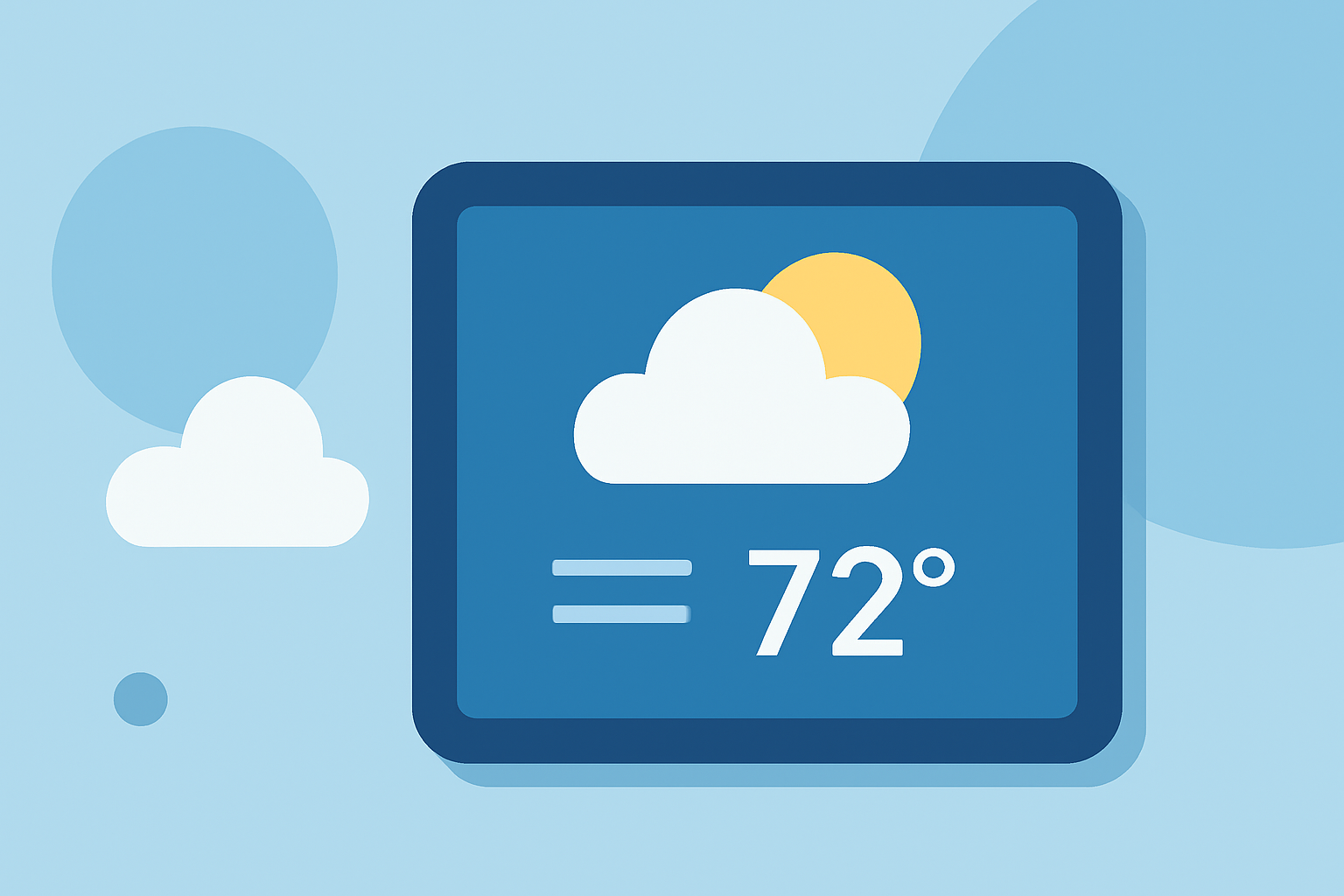
Weather widgets are interactive elements on your device's home screen that display real-time weather information without the need to open a full application. They provide quick access to current conditions, forecasts, and other relevant data, helping you stay informed and plan your day effectively.
What Are Weather Widgets?
A weather widget is a small, interactive panel that shows live weather information directly on your device's home screen. This allows you to check the weather at a glance without opening a dedicated weather app. Widgets can display various details, including current temperature, weather conditions, hourly forecasts, and severe weather alerts. (techtarget.com)
How Do Weather Widgets Work?
Weather widgets function by pulling data from weather services and presenting it in a concise format on your home screen. They update in real-time, ensuring that the information displayed is current and accurate. Depending on the widget's design and your device's capabilities, you can interact with the widget to access more detailed information or perform specific actions, such as setting up weather alerts or viewing extended forecasts.
Setting Up Weather Widgets on Your Device
On iOS Devices (iPhone and iPad):
- Add a Widget to Your Home Screen:
- Touch and hold an empty area on your Home Screen until the apps jiggle.
- Tap the '+' button in the top-left corner.
- Scroll down and select the 'Weather' widget.
- Choose the widget size (small, medium, or large) and tap 'Add Widget.'
- Customize the Widget's Location:
- Touch and hold the Weather widget on your Home Screen.
- Tap 'Edit Widget.'
- Tap 'Location' and select your desired location.
- Tap outside the widget to save your changes.
On Android Devices:
- Add a Widget to Your Home Screen:
- Touch and hold an empty area on your Home Screen.
- Tap 'Widgets.'
- Scroll through the list to find the 'Weather' widget.
- Touch and hold the widget, then drag it to your Home Screen.
- Customize the Widget's Location:
- Touch and hold the Weather widget on your Home Screen.
- Tap 'Edit' or 'Settings.'
- Select your desired location and adjust other settings as needed.
On Windows 11:
- Access the Widgets Board:
- Click the Widgets icon on the taskbar (it looks like a blue rectangle with white and cyan rectangles inside).
- Add a Weather Widget:
- In the Widgets board, click the '+' button to add a new widget.
- Select the 'Weather' widget from the list.
- The widget will now appear on your Widgets board, displaying current weather information.
Benefits of Using Weather Widgets
- Instant Access: Quickly view current weather conditions and forecasts without opening an app.
- Customization: Choose widget sizes and locations that fit your Home Screen layout.
- Real-Time Updates: Stay informed with up-to-date weather information.
- Personalization: Set up widgets for multiple locations to monitor weather in different areas.
Conclusion
Weather widgets are a convenient way to keep track of weather conditions directly from your device's home screen. By setting up and customizing these widgets, you can ensure that you have timely and relevant weather information at your fingertips, aiding in better planning and decision-making throughout your day.