
Weather Widgets Guide for Travelers
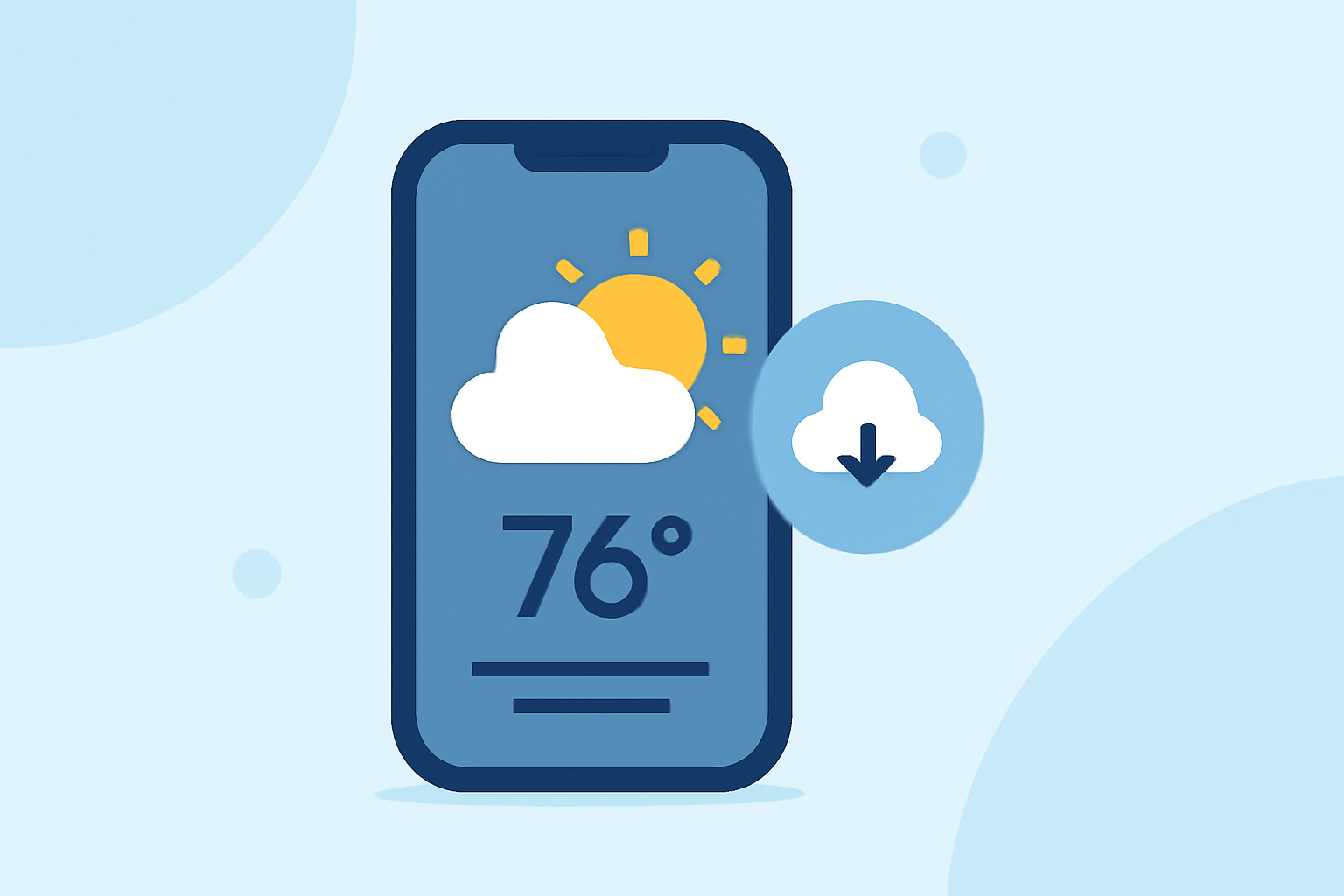
Traveling often means navigating through varying weather conditions. Having immediate access to accurate weather information is essential for planning and safety. Weather widgets offer a convenient solution by displaying real-time weather updates directly on your device's home screen.
What Are Weather Widgets?
Weather widgets are interactive elements that provide current weather conditions, forecasts, and alerts without the need to open a full application. They offer quick insights into temperature, precipitation, wind speed, and more, tailored to your location or selected destinations. This instant access helps travelers make informed decisions on the go.
Why Are Weather Widgets Important for Travelers?
For travelers, weather widgets are invaluable tools that deliver localized weather information at a glance. This immediate access aids in planning activities, dressing appropriately, and ensuring safety during trips. Widgets eliminate the need to launch an app, providing instant updates directly on your home screen.
How to Choose the Right Weather Widget
When selecting a weather widget, consider the following factors:
-
Accuracy and Reliability: Ensure the widget provides accurate and up-to-date information.
-
Customization Options: Look for widgets that allow you to adjust the display to your preferences, such as choosing between different sizes or themes.
-
User Interface: A clean and intuitive interface enhances usability, especially when you're on the move.
-
Additional Features: Some widgets offer features like severe weather alerts, radar maps, or air quality indices, which can be particularly useful for travelers.
Setting Up Weather Widgets on Your Device
For iOS Devices:
-
Add a Widget: Touch and hold an empty area on your Home Screen until the apps jiggle. Tap the '+' button in the top-left corner.
-
Select a Widget: Scroll down and select the Weather widget. Choose the size and style that suits you.
-
Place the Widget: Drag the widget to your desired location on the Home Screen and tap 'Done'.
For Android Devices:
-
Access Widgets: Touch and hold an empty area on your Home Screen, then tap 'Widgets'.
-
Choose a Widget: Browse through the available widgets and select the Weather widget.
-
Add to Home Screen: Touch and hold the widget, then drag it to your Home Screen.
Best Practices for Using Weather Widgets While Traveling
-
Monitor Multiple Locations: If you're traveling to different destinations, consider adding multiple weather widgets to monitor conditions in each area.
-
Stay Updated: Regularly check your widgets for the latest weather updates, especially when planning outdoor activities.
-
Customize Alerts: Set up notifications for severe weather conditions to stay informed about potential disruptions.
Conclusion
Incorporating weather widgets into your device can significantly enhance your travel experience by providing timely and localized weather information. By choosing the right widget and setting it up effectively, you can ensure you're always prepared for changing weather conditions during your travels.
(support.apple.com)